Complete Workers AI Tutorial: 10,000 Free LLM API Calls Daily, 90% Cheaper Than OpenAI
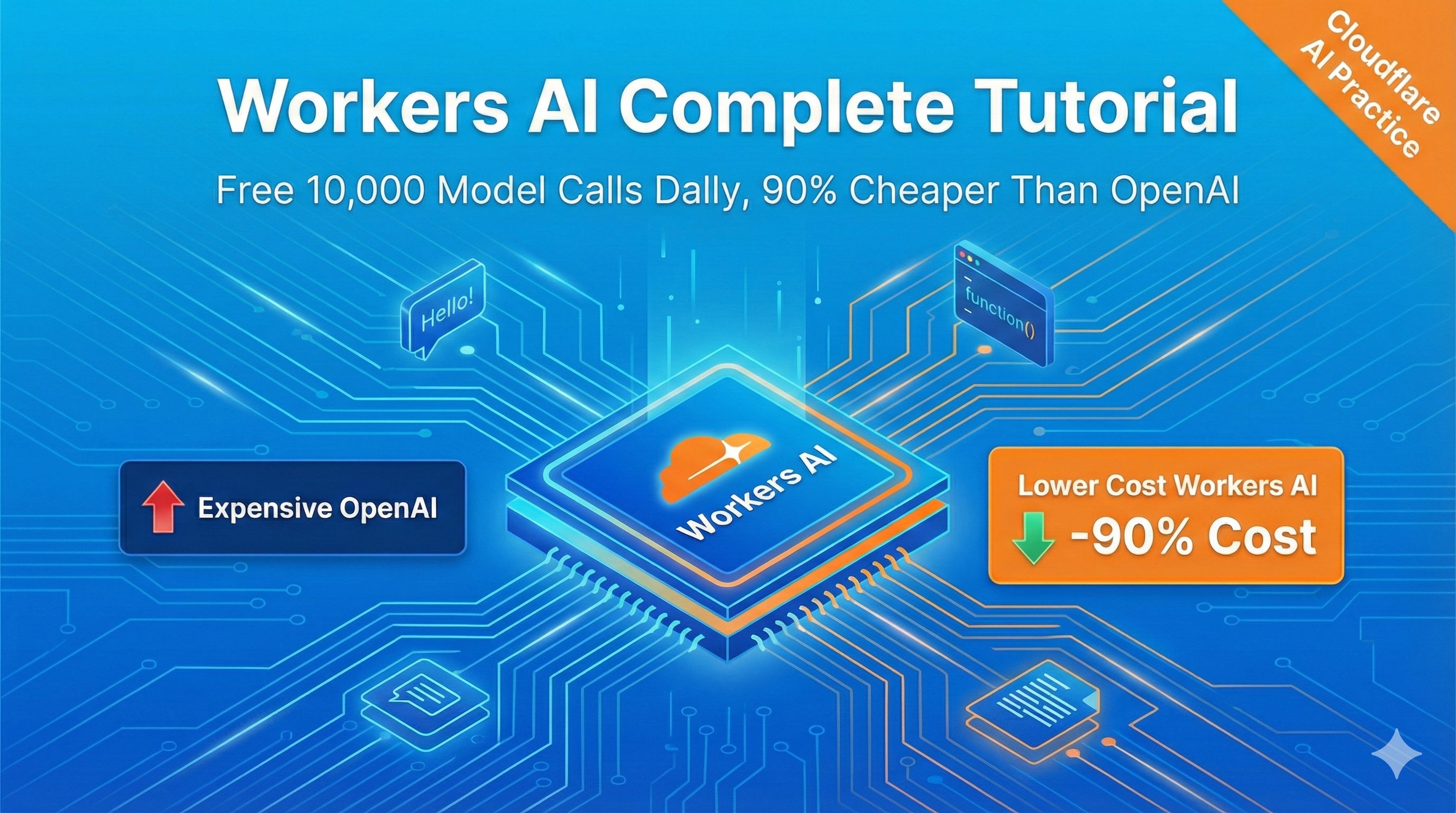
Honestly, I was shocked when I first saw my OpenAI bill. Over $200 in a month, just from testing an API for a small project for a few days. That’s when I thought: is there a free or cheaper alternative?
Later, while researching Cloudflare’s edge computing features, I stumbled upon Workers AI. After testing it for a week, I found that the free tier is genuinely sufficient for individual developers. Today I’ll share the complete guide on how to use it.
What is Workers AI? Why Should You Care?
Simply put, Workers AI is Cloudflare’s serverless AI inference service. You don’t need to buy GPUs or manage servers - just write a few lines of code to call open-source large language models like Llama and Mistral.
The three most important points:
10,000 Neurons daily free tier
- In my tests, this handles hundreds of conversations - plenty for personal projects
- Using Llama 3.1-8B model, I ran 1,000 simple conversations and consumed about 8,000 Neurons
Paid tier is also cheap: $0.011/1000 Neurons
- 60-70% cheaper than OpenAI GPT-3.5
- Over 90% cheaper than GPT-4
Global edge network acceleration
- Cloudflare has 300+ nodes
- Response speed faster than many cloud providers
Comparison with Other Solutions
You might ask: can free stuff be any good? Here’s a comparison table:
| Solution | Free Tier | Paid Pricing | Response Speed | Model Selection |
|---|---|---|---|---|
| Workers AI | 10,000 Neurons/day | $0.011/1k Neurons | Fast (edge nodes) | 50+ open-source models |
| OpenAI API | $5 new user (one-time) | $0.002/1k tokens (GPT-3.5) | Medium | GPT series |
| HuggingFace | Limited free calls | Per-model pricing | Slow | Massive selection |
| Self-hosted | - | High GPU rental cost | Depends on config | Any model |
When is Workers AI suitable?
- ✅ Personal projects, prototyping, learning experiments
- ✅ Small to medium production apps (QPS < 300)
- ✅ Cost-sensitive startup projects
When might it not be ideal?
- ⚠️ Large-scale batch processing (hundreds of thousands of calls daily)
- ⚠️ Latency-critical real-time apps (requiring < 100ms response)
- ⚠️ Scenarios requiring latest GPT-4 level models
Is the Free Tier Enough? Let Me Do the Math
“Neurons” is Cloudflare’s custom billing unit. At first I was confused too. Simply understand it as:
Neurons = (input tokens + output tokens) × model coefficient
Different models have different coefficients:
- Llama 3.1-8B: coefficient ~0.8
- Llama 3.1-70B: coefficient ~3.5
- Mistral 7B: coefficient ~0.7
How many times can you actually use it?
I tested with Llama 3.1-8B processing Chinese conversations:
- Simple Q&A (under 100 characters): 5-8 Neurons each
- Long text summary (1000 character input): 30-50 Neurons each
- Code generation (500 lines of code): 20-40 Neurons each
Based on this consumption, 10,000 Neurons daily can handle:
- 1000-2000 simple conversations
- 200-300 long text processing tasks
- 250-500 code generations
Honestly, for individual developers it’s really enough. I now run a small bot with Workers AI that handles hundreds of messages daily, completely within the free tier.
What if I Exceed the Free Tier?
It automatically switches to paid mode at $0.011/1000 Neurons.
I calculated: even if you exceed it, the cost is still low:
- Assume you use 50,000 Neurons daily (5x the free tier)
- Overage: 40,000 Neurons
- Cost: 40,000 / 1000 × $0.011 = $0.44/day
- About $13/month
Compared to OpenAI: same usage might cost $50-100, Workers AI is indeed much cheaper.
Quick Start: Three Ways to Call Workers AI
Prerequisites are simple:
- Register a Cloudflare account (free)
- Install Node.js (if using methods 2 or 3)
Next I’ll introduce three methods, from simple to advanced - choose based on your needs.
Method 1: Simplest - Direct REST API
This is the fastest way to experience it - no coding needed, just use curl commands.
Step 1: Get API Token and Account ID
- Login to Cloudflare, visit https://dash.cloudflare.com
- The address bar will show
https://dash.cloudflare.com/xxxxxxxxx, thatxxxxxxxxxstring is your Account ID, save it - Click avatar top-right → My Profile → API Tokens
- Click “Create Token” → find “Workers AI” template → “Use template”
- Continue to the end, it will generate a Token, this shows only once, make sure to save it
I spent ages finding this Token location, so I took screenshots (if you can’t find it, search for Cloudflare API Tokens page).
Step 2: Test the Call
Open terminal and run this command (remember to replace your Account ID and Token):
curl https://api.cloudflare.com/client/v4/accounts/{your_Account_ID}/ai/run/@cf/meta/llama-3.1-8b-instruct \
  -H "Authorization: Bearer {your_API_Token}" \
  -H "Content-Type: application/json" \
  -d '{
    "messages": [
      {"role": "system", "content": "You are a friendly AI assistant"},
      {"role": "user", "content": "Introduce Cloudflare Workers AI in one sentence"}
    ]
  }'
If you see JSON returned like this, it succeeded:
{
  "result": {
    "response": "Cloudflare Workers AI is a serverless AI inference platform..."
  },
  "success": true
}
When I first got a successful response, I was so excited I took a screenshot and posted it 😂
Common Error Handling:
- Error 7003: Token or Account ID is wrong, check if completely copied
- Error 10000: Model name is wrong, note it’s
@cf/meta/llama-3.1-8b-instruct, don’t miss the@cf/ - Timeout: First call might be slow (cold start), wait about 10 seconds, subsequent calls will be faster
Method 2: Recommended - Deploy with Workers + Wrangler
This is the officially recommended method. The benefit is you can deploy a permanently available API with easier configuration management.
Step 1: Install Wrangler CLI
npm install -g wranglerThen login to your Cloudflare account:
wrangler loginIt will automatically open a browser for authorization, just click agree.
Step 2: Create Worker Project
npm create cloudflare@latest my-ai-workerIt will ask you some questions, choose like this:
- Select a project type: “Hello World” Worker
- Do you want to use TypeScript? Up to you, I chose No (using JavaScript)
- Do you want to use git? Yes
- Do you want to deploy? Choose No first, test before deploying
Step 3: Configure Workers AI Binding
Enter the project directory, edit the wrangler.toml file, add these lines at the end:
[ai]
binding = "AI"
This way you can access Workers AI service using env.AI in your code, no need to manually pass Token.
Step 4: Write Code
Edit src/index.js (or index.ts), change the content to this:
export default {
  async fetch(request, env) {
    // Handle CORS (if calling from web page)
    if (request.method === 'OPTIONS') {
      return new Response(null, {
        headers: {
          'Access-Control-Allow-Origin': '*',
          'Access-Control-Allow-Methods': 'POST',
          'Access-Control-Allow-Headers': 'Content-Type',
        },
      });
    }

    // Only accept POST requests
    if (request.method !== 'POST') {
      return new Response('Method not allowed', { status: 405 });
    }

    try {
      // Parse request
      const { messages } = await request.json();

      // Call AI model
      const response = await env.AI.run('@cf/meta/llama-3.1-8b-instruct', {
        messages: messages || [
          { role: 'user', content: 'Hello!' }
        ]
      });

      // Return result
      return new Response(JSON.stringify(response), {
        headers: {
          'Content-Type': 'application/json',
          'Access-Control-Allow-Origin': '*',
        },
      });
    } catch (error) {
      return new Response(JSON.stringify({ error: error.message }), {
        status: 500,
        headers: { 'Content-Type': 'application/json' },
      });
    }
  },
};
Step 5: Local Testing
wrangler devThis starts a local server, usually at http://localhost:8787.
Test with curl:
curl http://localhost:8787 \
  -X POST \
  -H "Content-Type: application/json" \
  -d '{
    "messages": [
      {"role": "user", "content": "Introduce yourself"}
    ]
  }'
If it returns normally, you can deploy.
Step 6: Deploy to Production
wrangler deployAfter successful deployment, you’ll get a *.workers.dev domain, like:
https://my-ai-worker.your-name.workers.devThis is now your AI API endpoint, callable from anywhere.
I now use this method to run a small customer service bot, completely free, with decent response speed (usually 1-3 seconds).
Method 3: Seamless Migration with OpenAI SDK
If you previously used OpenAI API and want to switch to Workers AI, this method is most convenient - almost no code changes needed.
Workers AI provides OpenAI-compatible endpoints, just change the baseURL.
import OpenAI from 'openai';

const client = new OpenAI({
  apiKey: process.env.CLOUDFLARE_API_TOKEN, // Use your Cloudflare Token
  baseURL: `https://api.cloudflare.com/client/v4/accounts/${process.env.ACCOUNT_ID}/ai/v1`,
});

// Exactly the same calling method as OpenAI
const chatCompletion = await client.chat.completions.create({
  model: '@cf/meta/llama-3.1-8b-instruct', // Change to Workers AI model name
  messages: [
    { role: 'system', content: 'You are a friendly AI assistant' },
    { role: 'user', content: 'Hello!' }
  ],
});

console.log(chatCompletion.choices[0].message.content);
Notes:
apiKeyuses Cloudflare API TokenbaseURLchanges to Workers AI endpointmodelchanges to Workers AI supported model name (add@cf/prefix)
I had a Next.js project using OpenAI before, migrating to Workers AI took only 10 minutes, just changed these three things.
What Models Are Available? How to Choose?
Workers AI now supports 50+ models. Let me introduce some commonly used ones.
Text Generation Models (Most Common)
| Model | Parameters | Features | Recommended Scenarios | Model ID |
|---|---|---|---|---|
| Llama 3.1 | 8B | Balanced, fast | Daily chat, customer service, summary | @cf/meta/llama-3.1-8b-instruct |
| Llama 3.1 | 70B | Higher quality, slower | Complex reasoning, long text | @cf/meta/llama-3.1-70b-instruct |
| Llama 4 Scout | 17B (MoE) | Multimodal (text+image) | Image understanding + text | @cf/meta/llama-4-scout |
| Mistral 7B v0.2 | 7B | 32k context | Long document analysis | @cf/mistral/mistral-7b-instruct-v0.2 |
| DeepSeek-R1 | 32B | Strong reasoning | Math, code, logic | @cf/deepseek/deepseek-r1-distill-qwen-32b |
| OpenAI GPT-OSS | 120B/20B | Cloudflare exclusive | Near GPT-4 level | @cf/openai/gpt-oss-120b |
My Selection Advice:
Start with Llama 3.1-8B
- Fast response (1-2 seconds)
- Quality sufficient, on par with GPT-3.5
- Low free tier consumption
For higher quality use Llama 3.1-70B or DeepSeek-R1
- Stronger reasoning ability
- Generation quality close to GPT-4
- Just slower (3-5 seconds), consumes 3-4x more
For long document analysis use Mistral 7B v0.2
- Supports 32k context window (Llama 3.1 only 8k)
- Suitable for long papers, long code
Other Useful Models
- Image Generation: Stable Diffusion XL -
@cf/stabilityai/stable-diffusion-xl-base-1.0 - Speech Recognition: Whisper -
@cf/openai/whisper - Text Embeddings: BGE-base -
@cf/baai/bge-base-en-v1.5(for vector search) - Content Safety: Llama Guard 3 -
@cf/meta/llama-guard-3-8b(detect harmful content)
Complete model list: https://developers.cloudflare.com/workers-ai/models/
Real-World Use Cases: Three Examples
Case 1: Build Smart Q&A API (Simplest)
Scenario: Add an AI customer service to your blog or documentation site.
Complete code (based on method 2):
export default {
  async fetch(request, env) {
    // Allow CORS
    const corsHeaders = {
      'Access-Control-Allow-Origin': '*',
      'Access-Control-Allow-Methods': 'POST, OPTIONS',
      'Access-Control-Allow-Headers': 'Content-Type',
    };

    if (request.method === 'OPTIONS') {
      return new Response(null, { headers: corsHeaders });
    }

    try {
      const { question } = await request.json();

      // Add your site's background knowledge in system prompt
      const messages = [
        {
          role: 'system',
          content: 'You are a tech blog AI assistant, mainly answering questions about Web development and AI applications. Keep answers concise and friendly.'
        },
        {
          role: 'user',
          content: question
        }
      ];

      const response = await env.AI.run(
        '@cf/meta/llama-3.1-8b-instruct',
        { messages }
      );

      return new Response(
        JSON.stringify({ answer: response.response }),
        { headers: { ...corsHeaders, 'Content-Type': 'application/json' } }
      );
    } catch (error) {
      return new Response(
        JSON.stringify({ error: 'Processing failed, please try again later' }),
        { status: 500, headers: { ...corsHeaders, 'Content-Type': 'application/json' } }
      );
    }
  }
};
Frontend Call:
async function askQuestion(question) {
  const response = await fetch('https://your-worker.workers.dev', {
    method: 'POST',
    headers: { 'Content-Type': 'application/json' },
    body: JSON.stringify({ question })
  });

  const data = await response.json();
  return data.answer;
}

// Usage
const answer = await askQuestion('How does Workers AI charge?');
console.log(answer);
Cost Estimate: Assume 200 users ask questions daily, each conversation consumes 10 Neurons, total 2000 Neurons, completely within free tier.
Case 2: Batch Text Summarization
Scenario: You have a bunch of articles needing summaries, like RSS feeds or news scraping.
async function generateSummary(text, env) {
  const messages = [
    {
      role: 'system',
      content: 'You are a professional text summarization assistant. Summarize the provided article in 2-3 sentences, highlighting core points.'
    },
    {
      role: 'user',
      content: `Please summarize the following article:\n\n${text}`
    }
  ];

  const response = await env.AI.run(
    '@cf/meta/llama-3.1-8b-instruct',
    {
      messages,
      max_tokens: 150 // Limit output length, save Neurons
    }
  );

  return response.response;
}

// Batch processing
export default {
  async fetch(request, env) {
    const { articles } = await request.json(); // Assume articles array input

    const summaries = [];

    // Note rate limits: 300 requests/minute, control concurrency
    for (const article of articles) {
      const summary = await generateSummary(article.content, env);
      summaries.push({ title: article.title, summary });

      // Simple rate control (should use smarter queue in practice)
      await new Promise(resolve => setTimeout(resolve, 200)); // 200ms interval each
    }

    return new Response(JSON.stringify(summaries), {
      headers: { 'Content-Type': 'application/json' }
    });
  }
};
Note Rate Limits:
- Llama 3.1-8B limit is 300 requests/minute
- For batch processing, remember to add delays or use queue
- I usually use
p-queuenpm package to control concurrency
Cost Calculation Example:
- Assume each article 1000 characters, generate 100 character summary
- Each consumes about 30 Neurons
- Process 300 articles = 9000 Neurons, still within free tier
Case 3: Multilingual Translation Service (Cheaper Than Google Translate)
Scenario: Build a translation tool or add internationalization to your app.
async function translate(text, targetLang, env) {
  const messages = [
    {
      role: 'system',
      content: `You are a professional translation assistant. Translate user input to ${targetLang}, maintaining original style and tone. Return only translation, no explanations.`
    },
    {
      role: 'user',
      content: text
    }
  ];

  const response = await env.AI.run(
    '@cf/meta/llama-3.1-8b-instruct', // Llama 3.1 supports multiple languages
    { messages }
  );

  return response.response;
}

export default {
  async fetch(request, env) {
    const { text, targetLang } = await request.json();

    const translation = await translate(text, targetLang, env);

    return new Response(JSON.stringify({ translation }), {
      headers: { 'Content-Type': 'application/json' }
    });
  }
};
Cost Comparison:
- Google Cloud Translation API: $20/million characters
- Workers AI (Llama 3.1): Assume 100 character text consumes 15 Neurons
- 1 million characters = 10,000 calls = 150,000 Neurons
- Cost: 150,000/1000 × $0.011 = $1.65
Over 10x cheaper! Of course, Google Translate accuracy might be slightly higher, but I think Llama 3.1’s translation quality is sufficient.
Advanced Tips: Optimizing Performance and Cost
1. Use Streaming Response to Reduce Latency
For long text generation, use streaming response to show incremental output (like ChatGPT).
const response = await env.AI.run(
  '@cf/meta/llama-3.1-8b-instruct',
  {
    messages,
    stream: true // Enable streaming response
  }
);

// Return streaming response
return new Response(response, {
  headers: { 'Content-Type': 'text/event-stream' }
});
Frontend uses Server-Sent Events (SSE) to receive:
const eventSource = new EventSource('https://your-worker.workers.dev');

eventSource.onmessage = (event) => {
  const data = JSON.parse(event.data);
  console.log(data.response); // Display word by word
};
2. Set max_tokens to Control Cost
If you don’t need long replies, limit output length:
const response = await env.AI.run(
  '@cf/meta/llama-3.1-8b-instruct',
  {
    messages,
    max_tokens: 100 // Maximum 100 tokens generated
  }
);
This saves quite a few Neurons, especially for batch processing.
3. Use Cloudflare AI Gateway for Caching and Monitoring
Cloudflare also has an AI Gateway service that can:
- Cache identical request results (save Neurons)
- Monitor API call statistics
- Rate limiting protection (prevent abuse)
Configuration is simple, add to wrangler.toml:
[ai]
binding = "AI"
gateway = "my-gateway" # Your AI Gateway name
Then create a Gateway in Cloudflare Dashboard → AI Gateway.
I now use this to monitor my Worker, can see daily Neurons consumption and slowest requests - quite convenient.
4. Integration with Other Services
Integration with Next.js app:
// app/api/ai/route.ts
import { NextRequest, NextResponse } from 'next/server';

export const runtime = 'edge'; // Important: use Edge Runtime

export async function POST(request: NextRequest) {
  const { messages } = await request.json();

  const response = await fetch(
    `https://api.cloudflare.com/client/v4/accounts/${process.env.ACCOUNT_ID}/ai/run/@cf/meta/llama-3.1-8b-instruct`,
    {
      method: 'POST',
      headers: {
        'Authorization': `Bearer ${process.env.CF_API_TOKEN}`,
        'Content-Type': 'application/json',
      },
      body: JSON.stringify({ messages }),
    }
  );

  const data = await response.json();
  return NextResponse.json(data);
}
Combined with Cloudflare Pages for frontend deployment:
You can deploy frontend to Cloudflare Pages and backend using Workers AI, all within Cloudflare ecosystem - faster and all free.
I have a project deployed this way now - frontend + backend costs nothing.
FAQ
Q1: How to get API Token?
A: Dashboard → My Profile → API Tokens → Create Token → Select “Workers AI” template. Save it well, shows only once.
Q2: Where to find Account ID?
A: After login, check address bar: https://dash.cloudflare.com/xxxxxxxxx, that xxxxxxxxx string.
Q3: What if Token is leaked?
A: Immediately go to API Tokens page to Revoke old Token, then generate a new one.
Q4: What happens when free tier runs out?
A: Automatically switches to paid mode at $0.011/1000 Neurons. You can set usage alerts in Dashboard to avoid overspending.
Q5: How to handle rate limits?
A: Most LLMs limit to 300 requests/minute. If exceeded:
- Add delays to control request frequency
- Use queue system to buffer requests
- Consider upgrading to paid plan (higher limits)
Q6: Which regions can use it?
A: Global access, Cloudflare has 300+ edge nodes. But mainland China access may require special network.
Q7: What if model output quality is unsatisfactory?
A: Several suggestions:
- Optimize prompt, provide more examples (few-shot learning)
- Switch to larger model, like from 8B to 70B
- Adjust temperature parameter (default 1.0, lower is more stable)
Q8: Can I fine-tune models?
A: Workers AI now supports LoRA fine-tuning (2024 new feature), but it’s a paid feature requiring ML knowledge. For most people, optimizing prompts is sufficient.
Q9: How to monitor usage?
A: Cloudflare Dashboard → Workers AI → Analytics, shows:
- Daily Neurons consumption
- Request count and success rate
- Average response time
Recommended to check regularly to avoid overages.
Q10: Which programming languages are supported?
A: Official support:
- JavaScript/TypeScript (Workers)
- Python (via REST API)
- Any language that can make HTTP requests
Using REST API, any language can call it.
Conclusion: Is Workers AI Worth Trying?
After testing for a month, my conclusion is: For individual developers and small teams, absolutely worth it.
Pros:
- ✅ Generous free tier (10,000 Neurons daily)
- ✅ Cheap paid pricing (60-90% cheaper than OpenAI)
- ✅ Easy to start (has REST API and OpenAI compatible interface)
- ✅ Fast response (global edge network)
- ✅ Many model choices (50+ open-source models)
Cons:
- ⚠️ Model quality slightly below GPT-4 (but close to GPT-3.5)
- ⚠️ Rate limits (300 requests/minute, may not suffice for large-scale apps)
- ⚠️ Documentation not perfect yet (some features require exploration)
My Recommendations:
- Personal projects - go for it directly, free tier is sufficient and saves server costs
- Startup projects can start with it, consider migration when scale increases
- Enterprise applications - evaluate carefully, consider SLA, data compliance, etc.
If you’re also looking for low-cost AI solutions, give Workers AI a try. Registration takes 5 minutes, running first example takes 15 minutes - who knows, it might suit you perfectly!
Further Learning Resources
- Cloudflare Workers AI Official Docs
- Workers AI Model Catalog
- Workers AI Playground - Test models online
- Cloudflare Community - Ask questions here
Welcome to share in comments:
- What projects have you built with Workers AI?
- What issues did you encounter?
- What optimization suggestions do you have?
Let’s learn together - maybe we can spark new ideas! 😄
Published on: Nov 21, 2025 · Modified on: Dec 4, 2025

Related Posts
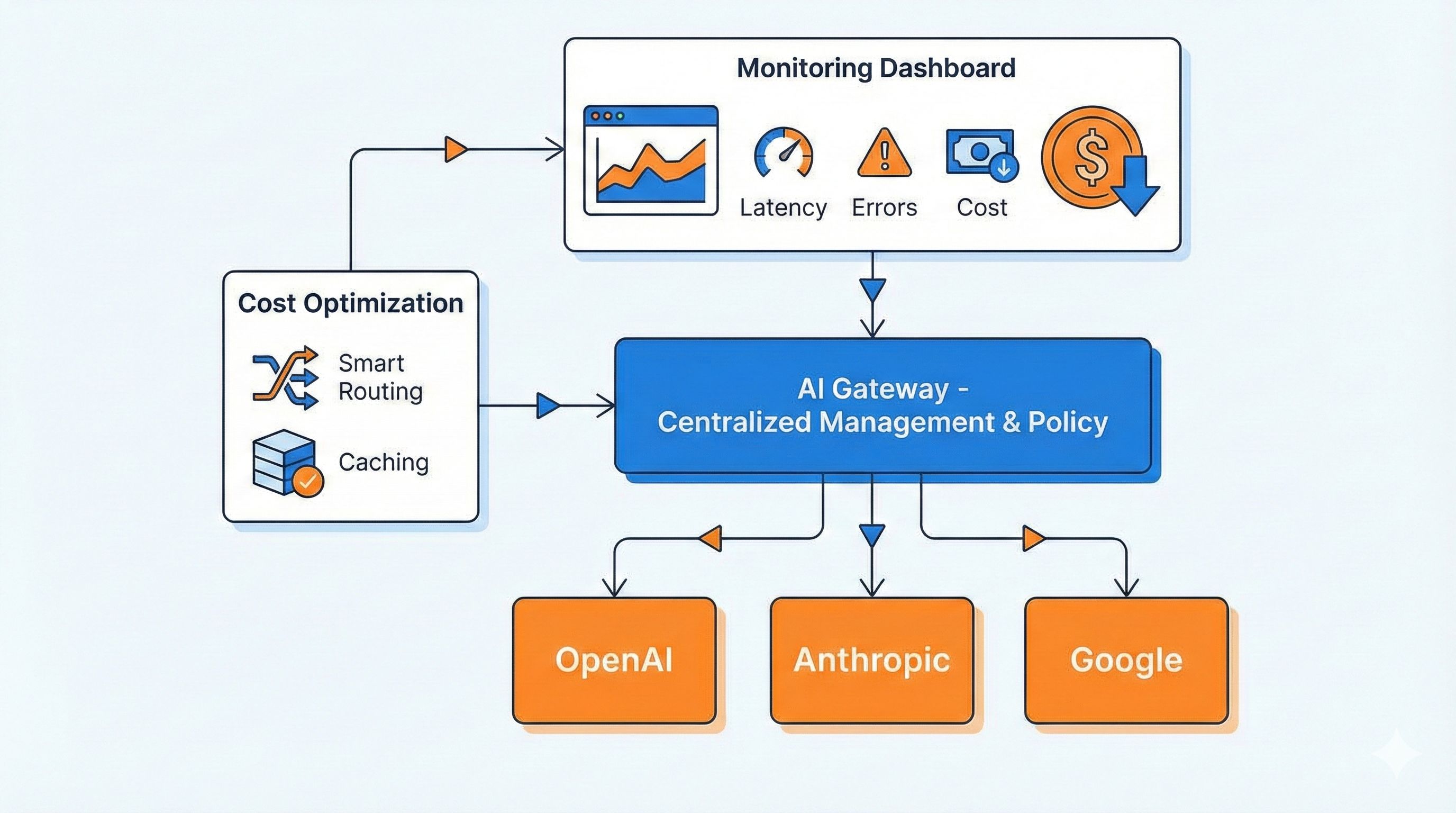
Tired of Switching AI Providers? One AI Gateway for Monitoring, Caching & Failover (Cut Costs by 40%)
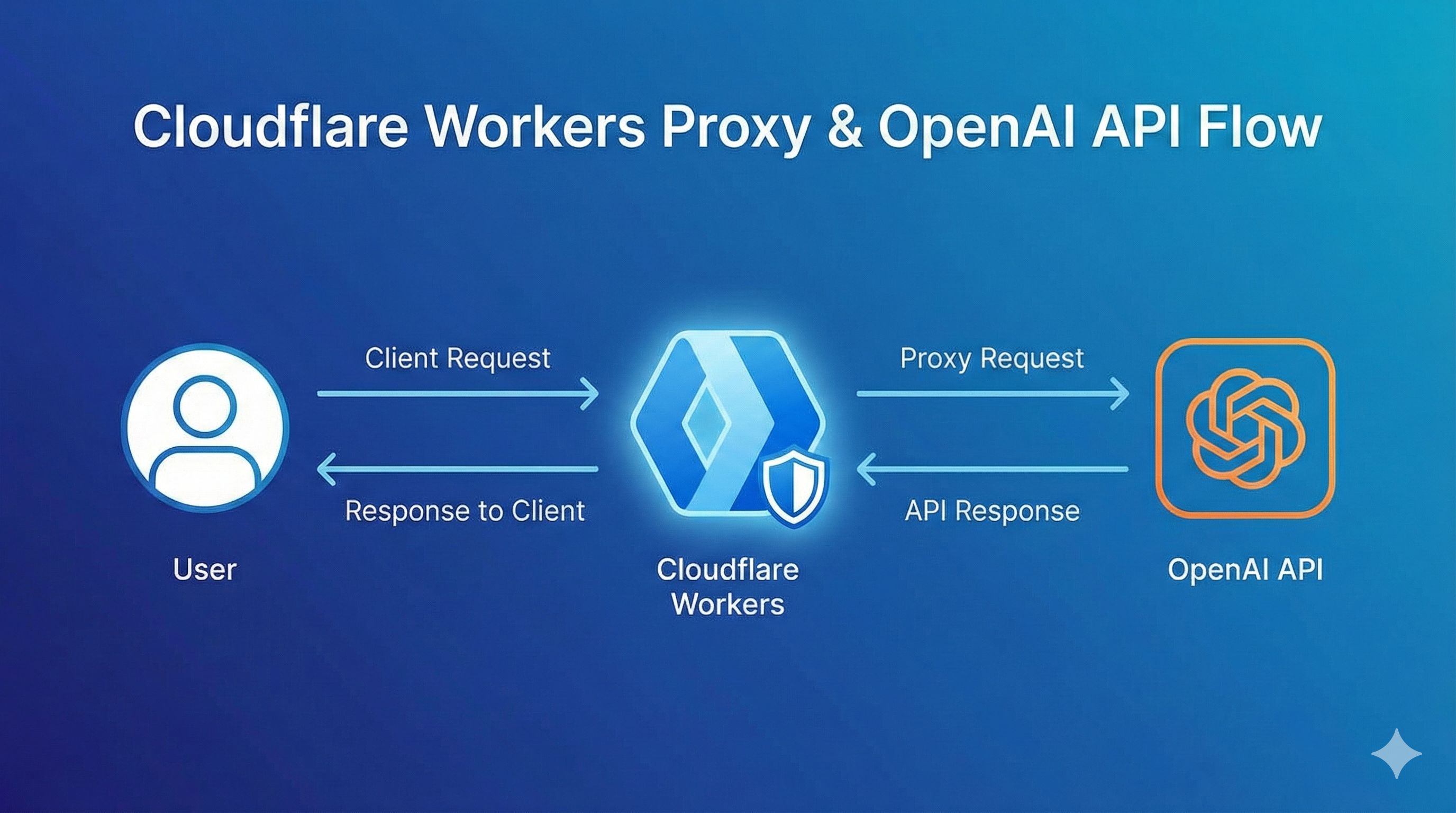
OpenAI Blocked in China? Set Up Workers Proxy for Free in 5 Minutes (Complete Code Included)