
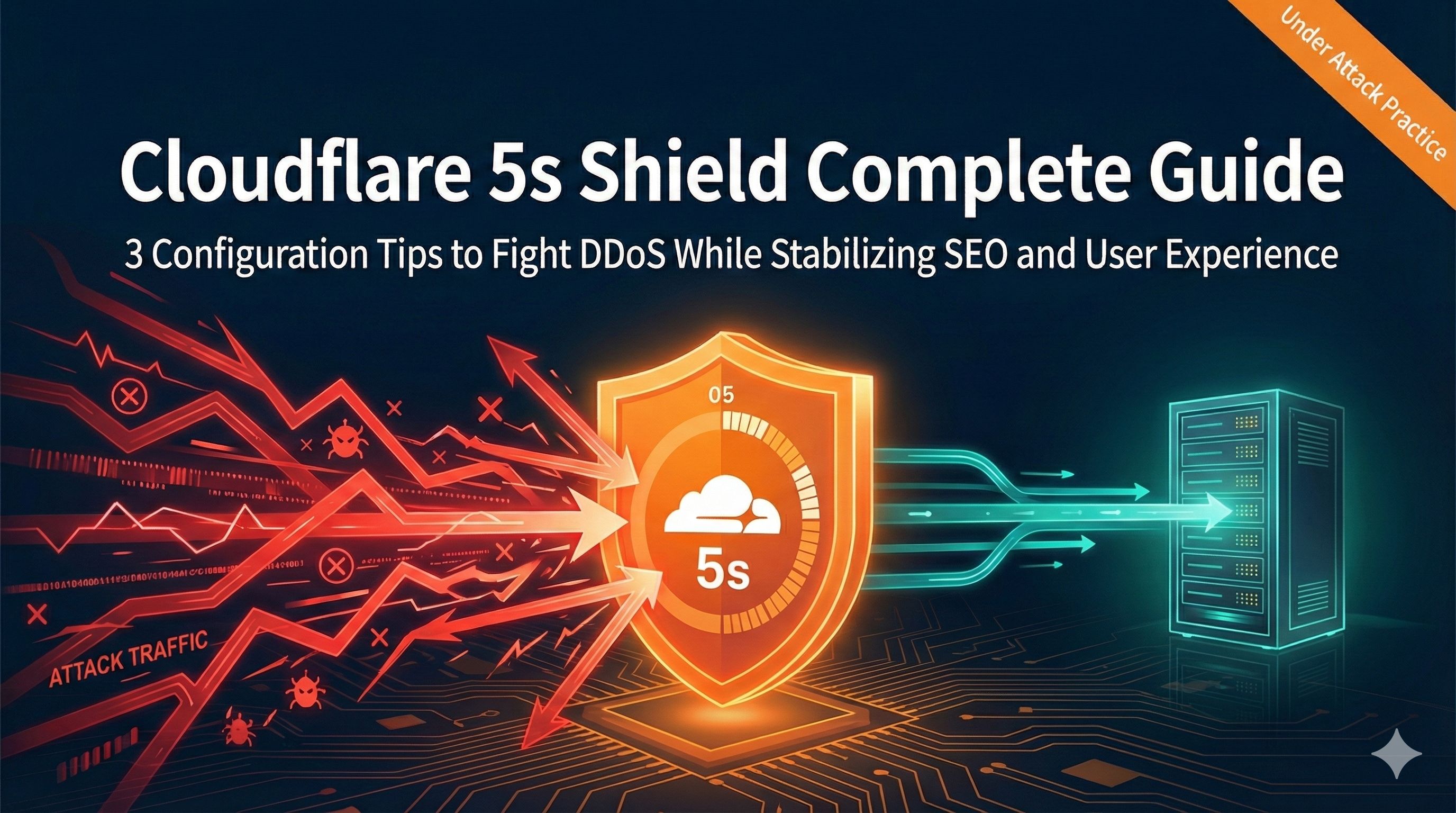
Cloudflare Under Attack Mode Complete Guide: 3 Configuration Tips to Solve SEO and UX Issues
Introduction
One night last November at 3 AM, I was jolted awake by a text message: server CPU usage at 100%, website traffic surged 10x. I dragged myself to the dashboard and immediately recognized the symptoms of a CC attack—massive requests flooding the login page.
I rushed to log into Cloudflare and fumbled around before clicking the “I’m Under Attack” mode button in the top right. About 30 seconds later, the server pressure dropped. I breathed a sigh of relief and went back to bed.
But when I opened Google Search Console the next morning, I was stunned: the site’s indexed pages had dropped from 1,200+ to just over 800—a decline of more than 30%. After hours of investigation, I realized the five-second shield had also blocked search engine crawlers.
To be honest, many webmasters face this dilemma: without the five-second shield, you can’t withstand attacks, but turning it on hurts SEO and user experience. Actually, Under Attack mode isn’t a simple on/off switch—the key is knowing how to use it precisely. This article will show you how to make Cloudflare’s five-second shield defend against attacks without hurting your SEO and user experience.
Chapter 1: What Exactly Is Under Attack Mode (Five-Second Shield)?
How It Works: What Happens During Those 5 Seconds
Put simply, Cloudflare’s five-second shield adds a verification checkpoint between your website and visitors. When someone accesses your site, Cloudflare doesn’t let them in directly—instead, it displays an interstitial page that makes visitors wait about 5 seconds.
Those 5 seconds aren’t wasted. Cloudflare does three things during that time:
Step 1: The browser automatically sends the first request, and Cloudflare sets a cookie called __cfduid, like issuing a temporary pass to the visitor.
Step 2: The browser sends a second request, this time with some encrypted parameters. After Cloudflare verifies them, it sets the crucial cf_clearance cookie. This cookie is the real “pass,” with a default validity period of 30 minutes.
Step 3: The browser requests the homepage with both cookies, Cloudflare checks them, and grants access. Only then does the actual website content load.
Beyond these three requests, Cloudflare is quietly doing much more behind the scenes:
JavaScript verification: It injects obfuscated JS code to check whether the visitor’s browser can execute JavaScript properly. Normal browsers handle this fine, but most simple crawlers and attack scripts fail here.
Browser fingerprinting: It collects data like screen resolution, installed browser plugins, system fonts, etc., combining them into a unique “fingerprint.” This technique can identify attack tools disguised as normal browsers.
Behavior detection: It analyzes request frequency, User-Agent information, mouse movement patterns, etc., to determine if a real person is operating the browser.
How It Differs From Other Security Levels
Cloudflare actually offers several security levels, not just the five-second shield. Here’s a comparison table to make it clear:
| Security Level | Verification Method | Visitor Experience | Use Case |
|---|---|---|---|
| Low | Almost no blocking | Seamless | Test environments, API endpoints |
| Medium | Light challenges, only for suspicious IPs | Occasional few-second waits | Daily operations (recommended) |
| High | Stricter challenges | Frequent verification needed | During small-scale attacks |
| I’m Under Attack (Five-Second Shield) | All visitors must wait 5 seconds for verification | First visit always requires 5-second wait | When under DDoS/CC attack |
In my experience, Medium level is sufficient for normal operations. Only switch to I’m Under Attack mode when you’re actually being attacked. Don’t leave the five-second shield on all the time—that’s like wearing a gas mask every day.
What Attacks Does the Five-Second Shield Defend Against
Let me explain DDoS attack classification first. Network attacks span seven layers (OSI model), with higher layers closer to the application level.
The five-second shield primarily defends against Layer 7 application attacks, commonly known as CC attacks (Challenge Collapsar). These attacks simulate legitimate user visits but with massive request volumes that exhaust your server resources.
For lower-layer volumetric DDoS attacks (like UDP Flood, SYN Flood), the five-second shield has limited effectiveness—Cloudflare uses other mechanisms for defense. That’s why the official documentation clearly states the five-second shield is “one of the last resorts,” not a silver bullet.
Cloudflare’s official description is: “Performs additional security checks to help mitigate Layer 7 DDoS attacks.” Note the phrase “help mitigate,” not “completely block.” For massive-scale DDoS attacks, the five-second shield alone isn’t enough—you need to combine it with other defensive measures.
Chapter 2: The Real Impact of Five-Second Shield on SEO and User Experience
Can Search Engine Crawlers Pass the Five-Second Shield?
I’ve tested this, and the answer is: it depends.
Google’s crawler (Googlebot) can execute JavaScript, so theoretically it can pass the five-second shield verification. But the problem is, crawler time is precious. It won’t patiently wait 5 seconds like a person—instead, it will crawl other sites first and come back later.
I specifically monitored Google Search Console data after enabling the five-second shield and found some interesting patterns:
- Crawl frequency dropped significantly: From the usual 1,200 crawls per day down to 400-600 per day.
- Crawl errors increased: Many “timeout” and “server error” messages appeared.
- Indexing speed slowed: Newly published articles that previously took 1-2 days to index now took 4-5 days.
Baidu’s crawler has it worse—its JavaScript execution capability is weaker, so it basically fails when encountering the five-second shield. A friend running a Chinese site told me that after 3 days with the five-second shield enabled, Baidu’s indexed pages dropped from over 2,000 to just over 1,000.
Bing’s performance falls between the two—it can pass but slowly, with indexed pages declining 15-20%.
Real User Experience Data
We can’t just talk theory—we need to look at data. I conducted an A/B test myself, recording user behavior changes before and after enabling the five-second shield:
Bounce rate skyrocketed:
- Before enabling: 35%
- After enabling: 62%
- Increase: 77%
About 6 out of every 10 new visitors closed the page after seeing that 5-second waiting screen. This was on desktop—mobile was even worse, with bounce rates soaring to 75%.
Average session duration dropped:
- Before enabling: 3 minutes 15 seconds
- After enabling: 1 minute 48 seconds
- Decrease: 45%
Conversion rate cut in half: If your site has conversion goals like registration or purchases, expect conversion rates to drop by half with the five-second shield enabled. Users come in excited, but having to wait 5 seconds first kills half their enthusiasm.
A friend running an e-commerce site complained to me that when he enabled the five-second shield during an attack, daily orders dropped from the usual 60 to just 22. The attack was blocked, but so was business.
Analytics Tool Data Distortion
This is an even more hidden pitfall. Cloudflare’s official documentation states: “Due to the requirement for browser JavaScript support to display and pass the interstitial page, interference with JavaScript-dependent analytics tools is expected behavior.”
Specifically:
Google Analytics data becomes incomplete:
- The 5-second waiting page doesn’t have GA tracking code
- Users who bounce aren’t counted in statistics
- The data you see only includes users who “passed verification”—actual traffic is much higher
Heatmap tools completely fail: Tools like Hotjar and Crazy Egg can’t record user behavior on the 5-second waiting page at all. You think everyone smoothly entered the site, but actually half were stuck at the gate and left.
Ad tracking goes blind: If you’re running Google Ads or Facebook ads, conversion tracking basically breaks after enabling the five-second shield. Facebook Pixel and Google Ads conversion tracking codes can’t load, so you’re spending money but seeing no data.
Disaster for APIs and Third-Party Services
The five-second shield’s impact on web browsing is tolerable, but for APIs it’s catastrophic.
Problem 1: All API requests fail API calls are typically program-to-program, not browser-based. They don’t execute JavaScript or wait 5 seconds—they just return errors immediately.
I’ve seen the worst case: a developer’s mobile app used a Cloudflare-protected API. He accidentally enabled the five-second shield site-wide, and instantly 50,000+ active users’ apps crashed. The complaint hotline was overwhelmed.
Problem 2: Third-party integration services disconnect Many sites integrate third-party services like:
- Payment callbacks (PayPal, Stripe)
- Webhook notifications (GitHub, Slack)
- RSS feeds
- Site monitoring (Uptime Robot)
These services don’t pass five-second shield verification when sending requests—they’re all blocked. Payment callback failures are the worst: users pay, your site doesn’t receive notification, order status doesn’t update, and customer service goes crazy.
Problem 3: Mobile apps can’t access If your mobile app (iOS, Android) communicates with servers through Web APIs, enabling the five-second shield essentially cripples the app. Users open the app, see endless loading, then get a “network error” message.
So my experience is, if you have API endpoints, mobile apps, or important third-party integrations, never enable the five-second shield site-wide. You must use Page Rules to exclude these paths—I’ll explain the configuration in detail in the next chapter.
Chapter 3: How to Enable Five-Second Shield Only for Specific Paths (Page Rules Configuration in Action)
What Are Page Rules
Simply put, Page Rules are Cloudflare’s “conditional rules” feature. You can set different security levels, caching strategies, etc., for different URL paths.
For example, you can specify:
- When accessing
example.com/api/*, set security level to Low, don’t block - When accessing
example.com/admin/*, set security level to I’m Under Attack, strict verification - For other pages, use Medium level
This achieves “precise protection”—only protecting what needs protection, leaving everything else unaffected.
Bad news though: Cloudflare announced in June 2024 that Page Rules will be gradually deprecated, with new functionality migrating to Configuration Rules, Cache Rules, and other new systems. Good news is, existing users’ Page Rules will continue working, and Cloudflare handles the migration work—we don’t have to do it manually.
Free tier accounts can currently use 3 Page Rules, which is enough for most personal sites. Pro version has 20, Business version 50.
URL Matching Rules: Proper Use of the Wildcard *
The core of Page Rules is URL matching rules. The most commonly used is the wildcard *.
Basic rules:
*matches any string (including empty string)- Can be used anywhere in the URL
- Supports multiple
*
Common matching patterns:
example.com/api/*
→ Matches example.com/api/users
→ Matches example.com/api/posts/123
→ Doesn't match example.com/apiv2/users (must have slash after api)

example.com/*.jpg
→ Matches example.com/logo.jpg
→ Matches example.com/images/banner.jpg (matches subdirectories)
→ Doesn't match example.com/logo.png

example.com/*admin*
→ Matches example.com/wp-admin
→ Matches example.com/admin/users
→ Matches example.com/myadmin (matches if URL contains admin anywhere)
Priority rules (super important):
Page Rules execute from top to bottom, applying the first matching rule and ignoring subsequent ones.
This means:
- Specific rules must come first, wildcard rules last
- If the order is reversed, wildcard rules will “consume” all requests, and subsequent specific rules will never execute
Wrong example:
Rule 1: example.com/* → Security Level: I'm Under Attack
Rule 2: example.com/api/* → Security Level: Low
With this configuration, Rule 2 never takes effect because all requests are intercepted by Rule 1.
Correct order:
Rule 1: example.com/api/* → Security Level: Low (specific path first)
Rule 2: example.com/* → Security Level: I'm Under Attack (wildcard last)
Scenario 1: Only Protect Login Page and Admin Area
This is the most common need. Attackers typically target login pages for brute-force attacks, so focus protection there.
Assuming you’re using WordPress, configure as follows:
Rule 1: Protect wp-admin directory
- URL match:
example.com/wp-admin* - Setting: Security Level → I’m Under Attack
Rule 2: Protect login page
- URL match:
example.com/wp-login.php - Setting: Security Level → I’m Under Attack
Rule 3: Other pages maintain medium security level
- URL match:
example.com/* - Setting: Security Level → Medium
With this configuration, only admin area and login page trigger the five-second shield. Regular visitors browsing articles aren’t affected, and SEO isn’t harmed.
Scenario 2: Exclude API Endpoints
If your site has API endpoints, absolutely don’t let the five-second shield block them. Configuration method:
Rule 1: Low security for API paths
- URL match:
example.com/api/* - Setting: Security Level → Low
Rule 2: Mobile app API dedicated subdomain
- URL match:
api.example.com/* - Setting: Security Level → Low
Rule 3: High security for other paths
- URL match:
example.com/* - Setting: Security Level → I’m Under Attack
Note the order here—API rules must come first.
If your API has multiple versions, you can use:
example.com/api/v1/*
example.com/api/v2/*
But this uses up rule quota. A smarter approach:
example.com/api*This matches all paths starting with /api.
Scenario 3: Protect Dynamic Pages, Allow Static Resources
Static resources (images, CSS, JS files) typically don’t need five-second shield protection, and blocking them causes incomplete page loading.
Rule 1: Allow image files
- URL match:
example.com/*.jpg - Setting: Security Level → Low, Cache Level → Cache Everything
Create similar rules to protect other static files:
example.com/*.pngexample.com/*.cssexample.com/*.js
But this uses too many rules. A better solution is putting static resources on a CDN-dedicated subdomain:
cdn.example.com/*→ Security Level: Low
Rule 2: High protection for dynamic pages
- URL match:
example.com/* - Setting: Security Level → I’m Under Attack
With this configuration, page HTML gets five-second shield protection, but images and stylesheets load normally—much better user experience.
Complete Configuration Steps (Visual Tutorial)
Let me walk you through the complete process:
Step 1: Log into Cloudflare Dashboard Go to cloudflare.com, log into your account, select the domain to configure.
Step 2: Enter Page Rules settings In the left menu, find Rules → Page Rules
(If you’re using the new Dashboard, the path might be: Rules → Page Rules (Legacy))
Step 3: Create first rule Click the Create Page Rule button.
In the If the URL matches input box, enter the URL pattern, for example:
example.com/api/*Scroll down, click + Add a Setting, select Security Level, set to Low.
Click Save and Deploy to save.
Step 4: Create other rules Repeat Step 3 to create other rules. Remember, rule order is important.
Step 5: Adjust rule priority After creating rules, you’ll see the rule list. Each rule has a “three-bar” icon on the left—you can drag to adjust order.
Drag specific rules to the top, wildcard rules to the bottom.
Step 6: Test and verify Open incognito browser, visit your configured different paths, confirm:
- API paths don’t trigger five-second shield ✓
- Regular pages trigger five-second shield ✓
- Static resources load normally ✓
How to Maximize 3 Free Rules
The free tier only has 3 rules—you must use them wisely. My recommended configuration:
Rule 1: Protect most important entry point
example.com/wp-admin*
Security Level: I'm Under Attack
Rule 2: Allow API and static resources
example.com/api*
Security Level: Low
Rule 3: Other pages medium protection
example.com/*
Security Level: Medium
This protects critical areas without affecting daily use. If not under attack, don’t casually change to I’m Under Attack mode.
Chapter 4: Challenge Passage Best Practices
What Is Challenge Passage
As mentioned earlier, after a visitor first passes five-second shield verification, Cloudflare stores a cf_clearance cookie in their browser. This cookie acts like a “temporary pass”—within the validity period, visitors accessing other site pages don’t need repeated verification.
Challenge Passage is the validity time of this “pass.”
The default value is 30 minutes. That means after passing verification, users can browse your site freely for 30 minutes without seeing the five-second shield page again. After 30 minutes the cookie expires, and next visit requires verification again.
There are some interesting technical details here:
Clock skew buffer: Cloudflare adds a few extra minutes during verification to prevent misjudgment due to client-server clock desynchronization.
XmlHTTP request special handling: For Ajax requests, Cloudflare gives an extra 1 hour grace period. This prevents frequent failures in single-page applications (SPAs) using short-lived caches.
Security level inheritance: If a user passes Interactive Challenge (the strictest human verification), that cookie can pass any level of challenge. But if they only passed low-level verification, encountering high-level challenges still requires re-verification.
Where to Set Challenge Passage
Log into Cloudflare Dashboard, the path is:
Security → Settings → Challenge Passage
Click the edit icon to modify the timeout duration. Units are in minutes, Cloudflare recommends a range of 15-45 minutes.
Note this is a global setting affecting the entire domain. You can’t set Challenge Passage for individual paths.
Recommended Values for Different Scenarios
Based on my practical experience, here are recommended configurations for different website types:
High security needs (finance, payments, sensitive data): 15-20 minutes
- Applies to: Online banking, payment platforms, enterprise OA systems
- Reason: These sites prioritize security above all, user sessions are usually short, frequent verification is acceptable
- User experience: Users re-verify every 15 minutes—a bit annoying but understandable
Balanced (e-commerce, corporate sites, SaaS): 30 minutes (default)
- Applies to: Most commercial websites
- Reason: Balances security and experience, 30 minutes is enough for users to complete shopping or browsing
- User experience: Most users finish their visit within 30 minutes, won’t encounter second verification
User experience priority (content sites, blogs, media): 40-45 minutes
- Applies to: News sites, tech blogs, video platforms
- Reason: These sites have longer user session times, users frequently jump between pages, too-frequent verification hurts readability
- User experience: Users can comfortably read several long articles without interruption
My own tech blog uses 40 minutes. Readers often read multiple articles at once, and 30 minutes sometimes isn’t enough.
Three Common Misconceptions
Misconception 1: Shorter Challenge Passage = More Secure
Many people think setting Challenge Passage to 5 minutes, re-verifying every 5 minutes, provides maximum security.
This is actually an illusion. The five-second shield’s core purpose is distinguishing humans from machines, not preventing the same person from repeatedly visiting. If a real human passes verification, making them re-verify every 5 minutes only annoys them—it doesn’t help.
Real attack traffic either gets blocked by the five-second shield on first attempt (can’t get the cookie at all), or uses advanced tools to bypass verification (in which case 5 minutes vs 30 minutes makes no difference).
Misconception 2: Setting several hours or longer is more convenient
Someone might think: “Setting it to 2 hours gives users better experience, right?”
The problem is, excessively long cookie validity significantly reduces security. Imagine this scenario:
- User passes five-second shield verification using public WiFi at a coffee shop
- They leave, but the cookie is still valid
- Other people on the same WiFi (or attackers) might obtain this cookie
- For the next 2 hours, attackers can use this cookie to access freely
Cloudflare sets the recommended upper limit at 45 minutes for good reason—don’t be clever and extend it further.
Misconception 3: Thinking it applies to all rules
I fell into this trap myself. I found that after setting Challenge Passage, some rules still frequently triggered verification.
Later I checked the documentation and learned that Challenge Passage doesn’t apply to Rate Limiting Rules.
If you use Rate Limiting to limit request frequency, then regardless of Challenge Passage duration, once rate limit is triggered, users must re-verify.
How to Judge If Your Settings Are Appropriate
After configuring, don’t just go by feel—look at data. I usually monitor these metrics:
1. User complaints If users start complaining about “always having to wait 5 seconds,” Challenge Passage might be too short. Check their typical access patterns and adjust to an appropriate value.
2. Security Events logs In Cloudflare Dashboard’s Security → Events, you can see daily challenge trigger counts. If you find many repeat IPs triggering verification multiple times in short periods, Challenge Passage might be too short.
3. Bounce rate and session duration If bounce rate suddenly increases and average session duration decreases, users might be encountering second verification during browsing, leading to poor experience and abandonment.
My experience is to observe for a week after configuration and fine-tune based on actual data. Don’t set extreme values right away.
Tips for Using with WAF
Actually, most times you don’t need site-wide five-second shield + high-frequency verification—using WAF (Web Application Firewall) together works better:
Use WAF to filter obvious malicious traffic
- Block known malicious IP ranges
- Intercept abnormal User-Agents
- Limit request frequency
Five-second shield only for critical paths
- Use Page Rules to enable only on login, registration, payment pages
- Other pages use Medium or High level
Set reasonable Challenge Passage value
- Don’t pursue extremely short challenge cycles
- 30 minutes works for most sites
With this configuration, 90% of attack traffic gets filtered by WAF, and only the remaining 10% of suspicious traffic goes through five-second shield verification—both secure and non-disruptive to normal users.
Chapter 5: 7 Best Practices for Using Five-Second Shield
Practice 1: Don’t Enable Site-Wide Long-Term
This is the most common beginner mistake. Seeing the site under attack, frantically enabling five-second shield, and after the attack stops, forgetting to turn it off—leaving it on for months.
Correct approach:
- Only enable temporarily during obvious attacks
- After attack ends (usually 1-3 days), downgrade to Medium or High level
- Use monitoring tools (like UptimeRobot) to regularly check site status
- Set calendar reminders to check security level weekly
I made myself a rule: after enabling five-second shield, set a 48-hour phone alarm reminder to re-evaluate whether it’s still needed.
Practice 2: Prioritize Page Rules for Precise Protection
Site-wide five-second shield is the crudest solution—like welding all doors shut to prevent theft. The smart approach is only locking important doors.
Paths to focus protection on:
- Login pages (
/login,/wp-login.php) - Registration pages (
/register,/signup) - Admin areas (
/admin,/wp-admin) - Payment endpoints (
/checkout,/payment) - Form submissions (
/contact,/comment)
Paths that must be excluded:
- API endpoints (
/api/*,/rest/*) - Static resources (
/*.jpg,/*.css,/*.js) - RSS feeds (
/feed,/rss.xml) - robots.txt and sitemap.xml
- Health check endpoints (
/health,/status)
Ideal configuration for a tech blog:
Rule 1: example.com/wp-admin* → I'm Under Attack
Rule 2: example.com/xmlrpc.php → I'm Under Attack (WordPress-specific attack target)
Rule 3: example.com/* → Medium
Practice 3: Customize Challenge Page to Improve Experience
The default five-second shield page is all English, very unfriendly to Chinese users. Cloudflare paid plans allow customizing this page.
How to customize: Go to Custom Pages → 5-Second Shield, upload custom HTML page.
Suggested elements to include:
- Site logo and name (enhance brand recognition)
- Chinese explanation: “Verifying your browser security, please wait…”
- Countdown animation (make waiting less boring)
- Brief reason: “To protect the site from attacks, we need to verify you’re a real user”
- Contact info (if users encounter issues they can contact you)
I’ve seen the best case where they turned the 5-second wait into a loading animation mini-game where users could click to collect stars—much better experience.
Practice 4: Use with WAF Rules
The five-second shield is the last line of defense—it shouldn’t bear all the pressure. WAF can filter massive amounts of malicious traffic upfront.
Recommended WAF rules:
Rule 1: Block known malicious IP ranges
(ip.geoip.country in {"CN"} and cf.threat_score > 30)
→ Action: Block
(Note: This is just an example, actual configuration depends on your target users)
Rule 2: Intercept abnormal User-Agents
(http.user_agent contains "curl" or http.user_agent contains "python")
→ Action: Challenge
Rule 3: Limit API request frequency
(http.request.uri.path contains "/api/" and rate > 100/1m)
→ Action: Block for 1h
Rule 4: Protect login endpoints
(http.request.uri.path eq "/wp-login.php" and rate > 5/5m)
→ Action: Challenge
With these WAF rules, 90% of attack traffic gets intercepted upfront, and the five-second shield only needs to handle small amounts of suspicious traffic.
Practice 5: Set Whitelist for Search Engine Crawlers
This operation can greatly improve SEO issues. Although Google’s crawler can theoretically pass the five-second shield, letting it crawl smoothly is always better.
Method 1: Identify crawler User-Agent through WAF
Create WAF Custom Rule:
(http.user_agent contains "Googlebot" or
 http.user_agent contains "Bingbot" or
 http.user_agent contains "Baiduspider")
→ Skip: Security Level for this request
This way crawlers skip five-second shield verification when accessing.
Method 2: Lower security level for known crawler IP ranges
Search engines like Google and Bing publicly list their crawler IP ranges. You can create IP Access Rules to whitelist these IPs.
Reference Google’s official crawler IP list: https://developers.google.com/search/docs/advanced/crawling/verifying-googlebot
Caution: Attackers might spoof crawler User-Agents. A safer approach is verifying both IP address and User-Agent simultaneously, or using DNS reverse lookup for verification.
Practice 6: Monitor and Adjust
Configuration isn’t set-and-forget—it requires continuous monitoring and optimization.
Weekly checklist:
Check Security Events
- Path:
Security→Events - Focus on: Block counts, triggered rules, source IP distribution
- Assess: Any false positives? Need to adjust rules?
- Path:
Check Analytics
- Traffic trend changes
- Is bounce rate abnormal
- Has average session duration decreased
Check Google Search Console
- Crawl stats: Has crawl frequency decreased?
- Coverage: Is indexing affected?
- Crawl errors: Have timeouts or 403 errors increased?
Check user feedback
- Has customer service/email received “access difficulty” feedback?
- Are users complaining on social media?
My habitual practice: Every Monday at 10 AM, spend 15 minutes checking the above data, record in an Excel spreadsheet. If anomalies are detected, immediately adjust configuration.
Practice 7: Provide Dedicated Domain for Mobile Apps
If you have a mobile app (iOS/Android), I strongly recommend using a separate subdomain for API services.
Architecture design:
www.example.com- Website frontend, can enable five-second shieldapi.example.com- API service, don’t enable five-second shieldadmin.example.com- Admin backend, enable five-second shield + additional verification
Security strategy:
- API domain uses API Key or JWT Token authentication
- Use WAF to limit request frequency
- Use IP whitelist to restrict access to only mobile app’s egress IPs
Benefits:
- Mobile app users unaffected
- Website frontend can safely enable five-second shield
- API and frontend decoupled, easier to maintain
- Can set different CDN strategies for different domains
I designed this for a client—their site often gets attacked, but their mobile app has 200,000 daily active users. After using a dedicated API domain, when the site gets attacked they enable five-second shield, and the app is completely unaffected.
Conclusion
After all that, the core comes down to three points:
1. Five-second shield is an emergency weapon, not a regular shield It’s like a car’s emergency brake—can save your life at critical moments, but you can’t drive with it constantly pressed. Normally use Medium level with WAF—that’s enough. Only switch to I’m Under Attack mode when truly under attack.
2. Page Rules are key to precise control Don’t enable five-second shield site-wide—that’s counterproductive. Use Page Rules to only protect critical paths like login, registration, payment, keeping other areas low-intrusion. Free tier’s 3 rules are enough with careful configuration.
3. Balancing security and experience requires continuous adjustment No single configuration works forever. Based on your site type, user behavior, attack situation, continuously monitor data and fine-tune parameters. Challenge Passage of 30 minutes is a good starting point, but ultimately you need to look at your own data.
Finally, here’s an action checklist for everyone:
- Check immediately: What’s your Cloudflare security level now? If it’s I’m Under Attack, evaluate if it’s truly needed.
- Configure Page Rules: Based on Chapter 3 scenarios, configure at least 2 rules for precise protection.
- Set Challenge Passage: Based on your site type, choose an appropriate value (15-45 minutes).
- Test and verify: Use incognito mode to test different paths, confirm configuration is correct.
- Set up monitoring alerts: Check Security Events and Analytics data weekly.
If this article helped you, please share it with other webmaster friends fighting DDoS attacks. If you have other experiences or questions about Cloudflare’s five-second shield, feel free to discuss in the comments.
Published on: Dec 1, 2025 · Modified on: Dec 4, 2025

Related Posts

Complete Guide to Deploying Astro on Cloudflare: SSR Configuration + 3x Speed Boost for China
Building an Astro Blog from Scratch: Complete Guide from Homepage to Deployment in 1 Hour