
S3 Traffic Fees Costing Thousands? Complete Guide to Migrating to R2 and Saving 90% (With Real Cases)
Introduction
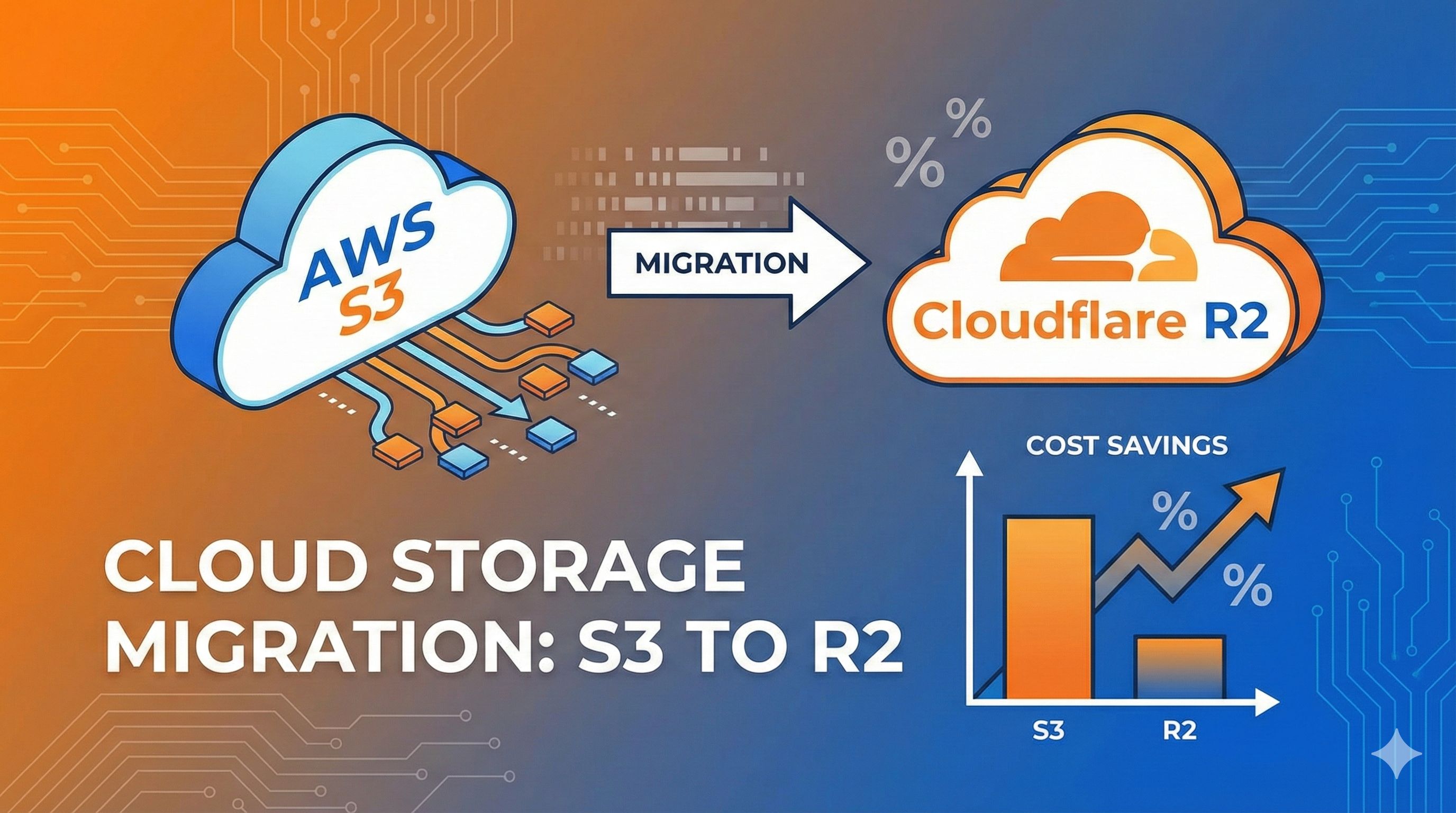
Last month when I checked my AWS bill, I nearly spit my coffee on the keyboard — storage was only $230, but bandwidth costs hit $4,500! After digging through the details, I found the culprit: S3 egress fees at $0.09/GB. It doesn’t sound like much, but when you’re pushing 50TB of traffic, your wallet takes a serious hit.
Talking to friends running video and image hosting services, I realized everyone was getting crushed by S3 egress fees. One friend running a SaaS platform told me their monthly 10TB traffic cost $891 on S3, while storage was only $15 — egress fees made up 98% of the bill. That’s crazy!
So what about switching to Cloudflare R2? Zero egress fees, same 10TB traffic, R2 only charges $15 for storage. My first reaction was: is this too good to be true? Is R2 slow or unreliable?
With these questions, I spent two weeks researching R2, running API compatibility tests, and actually migrating several projects. Today I’m sharing my experience, including cost calculations for 3 real scenarios, API compatibility findings, a 30-minute migration tutorial, and pitfalls I encountered.
To be honest, R2 isn’t right for every scenario, but if your app has high traffic (>500GB/month), this article can help you save thousands to tens of thousands annually.
Why Migrate from S3 to R2? Let’s Look at the Numbers
S3’s Hidden Cost Trap
AWS’s pricing strategy is clever. Storage at $0.023/GB looks cheap — you think “hey, pretty affordable.” But once traffic starts flowing, egress fees at $0.09/GB become the real killer.
Let me break it down. Say you’re running a video site with 10TB of storage and 50TB monthly traffic (user views/downloads):
- Storage fee: 10TB × $23/TB = $230/month
- Egress fee: 50TB × $90/TB = $4,500/month
- Total: $4,730/month
See that? Egress fees are 95% of the bill! And that’s at $0.09/GB — small volume users don’t even get discounts.
A friend running an image hosting service with 20TB monthly traffic spent $20,676 annually on S3. He complained: “Storage is only $276, the rest is all egress fees. Feels like I’m working for AWS.”
Where R2’s Cost Advantage Really Lies
Cloudflare R2’s killer feature: zero egress fees.
Note: not discounted, completely free. Whether you push 1TB or 100TB, it’s $0. For high-traffic apps, this is a lifesaver.
Cost breakdown:
- Storage fee: $0.015/GB, or $15/TB (35% cheaper than S3)
- Egress fee: $0 (S3 is $90/TB)
- Operation fees: Class A $4.50/million, Class B $0.36/million
R2 also offers free tier:
- 10GB storage
- 1 million Class A operations (writes/lists)
- 10 million Class B operations (reads)
For personal blogs or small projects, you might stay entirely within the free tier.
Real Case Comparisons (Don’t Just Trust My Math, Look at the Data)
I’ve compiled 3 typical scenarios:
| Scenario | Storage | Monthly Traffic | S3 Monthly | R2 Monthly | Annual Savings |
|---|---|---|---|---|---|
| Personal Blog | 50GB | 500GB | $50 | $0.75 | $591 |
| SaaS App | 1TB | 10TB | $923 | $15 | $10,896 |
| Video Platform | 10TB | 50TB | $4,730 | $150 | $54,960 |
See the SaaS row? Same requirements, R2 saves $10,896 annually. For a startup, that could be a junior developer’s salary.
The video platform is even more dramatic — $54,960 saved annually. Wouldn’t that money be better spent on marketing or hiring?
When NOT to Bother Migrating
After all those benefits, I should also mention scenarios where R2 isn’t ideal — don’t want you migrating and then blaming me:
Deep AWS ecosystem integration: If your app heavily uses Lambda, Athena, EMR and other AWS services, migrating to R2 might require significant code changes. Not worth it.
Need advanced compliance features: S3 has Object Lock, Legal Hold for compliance requirements that financial and healthcare industries often need. R2 doesn’t have these yet. If your compliance audit requires them, don’t migrate.
Very low traffic: If monthly traffic is <100GB, migration won’t save much (maybe just tens of dollars), better to focus on business.
Strict data location requirements: S3 has 33 regions to choose from, R2 has fewer location hints. If you need data stored in specific countries (like China or Russia), verify R2 can meet your needs first.
My rule of thumb: if monthly traffic exceeds 500GB, migration ROI is worth it. Below that, depends on your cost sensitivity.
R2 and S3 API Compatibility Truth (With Pitfall Guide)
How Compatible is R2 Really?
This is everyone’s biggest concern: will migrating to R2 crash my app? How much code needs changing?
My testing conclusion: R2 implements 80-90% of S3 API core functionality, covering basically all common operations.
Cloudflare’s strategy is smart — they implemented the most frequently used parts of S3 API, including:
- Basic operations: PutObject, GetObject, DeleteObject, ListObjects (these cover 99% of use cases)
- Advanced features: Multipart Upload (chunked uploads for large files), Presigned URLs, CORS configuration
- Permission management: Bucket policies, IAM-style access keys
The best part? You only need to modify endpoint URL and credentials, code barely needs touching.
For example, I had a project using AWS SDK for JavaScript. Migration to R2 only changed 3 lines:
// Original S3 config
const s3 = new AWS.S3({
  region: 'us-east-1'
});

// Migrated to R2 (only endpoint and credentials changed)
const r2 = new AWS.S3({
  endpoint: `https://${ACCOUNT_ID}.r2.cloudflarestorage.com`,
  accessKeyId: R2_ACCESS_KEY_ID,
  secretAccessKey: R2_SECRET_ACCESS_KEY,
  signatureVersion: 'v4',
});
All other upload, download, delete code stayed the same, worked directly. Tested for two weeks, found no compatibility issues.
What’s Not Supported (Pitfall Warning)
R2 isn’t a perfect S3 replacement. Some features genuinely aren’t supported — confirm your app isn’t using these before migrating:
1. S3 Select (SQL queries on objects) If you use S3 Select to run SQL queries directly on S3, R2 doesn’t support it. Need to download data first then query, or use alternative solutions.
2. Object Lock and Legal Hold (compliance locking) Financial and healthcare industries often use this to meet compliance requirements (WORM - Write Once Read Many). R2 doesn’t have it yet. If your compliance audit requires this feature, don’t migrate.
3. Versioning (version control) S3’s versioning functionality has limited support on R2. If your app heavily relies on version rollback, test carefully.
4. Some advanced query and analytics features Like S3 Inventory, S3 Object Lambda — R2 doesn’t support these.
My advice: Before migrating, list all S3 features your app uses, check against Cloudflare’s official API compatibility documentation. Most apps only use basic features and won’t have issues.
Tool Compatibility Testing
I tested several common tools, conclusion is they basically all work seamlessly:
| Tool | Compatibility | Notes |
|---|---|---|
| AWS CLI | ✅ Perfect | Just configure endpoint |
| rclone | ✅ Perfect | v1.59+ version, native R2 support |
| s3cmd | ✅ Perfect | Just modify config file |
| AWS SDK (JS/Python/Go) | ✅ Perfect | Change endpoint and credentials |
| Cyberduck | ✅ Perfect | GUI tool, supports R2 |
Only thing to note: rclone version must be ≥1.59, older versions have authentication issues.
A Pitfall I Encountered
Let me share a pitfall I hit during migration. I had an app using S3’s ListObjectsV2 API with StartAfter parameter for pagination. After migrating to R2, found the pagination logic was slightly different, causing some data to be missed.
After investigation, found R2’s pagination behavior slightly differs from S3. After switching to ContinuationToken parameter, it worked fine.
Lesson learned: After migration, do thorough testing. Don’t just test normal flows, cover edge cases too.
3 Migration Options Compared: Choose What Fits You
Cloudflare offers two official tools (Super Slurper and Sippy), plus community solutions like rclone. Which to choose? Depends on your scenario.
Option 1: Super Slurper (Recommended for Beginners, One-Time Migration)
Super Slurper is Cloudflare’s official one-click migration tool, perfect for “I just want to move all the data” scenarios.
Clear advantages:
- Dead simple operation, fill in a few forms and migration starts
- Preserves all metadata (metadata, content-type, etc.)
- Doesn’t delete source data, zero risk
- Free to use, only charges R2 Class A operation fees (very cheap)
- After 2024 upgrade, speed increased 5x
Downsides to know:
- One-time migration only, no incremental sync
- During migration if users upload new files to S3, they won’t auto-sync to R2
- Works best for objects <50GB (very large files might have issues)
Good for:
- Data volume <10TB
- Can accept brief downtime (or service not yet launched)
- Complete switch to R2 after migration, no longer using S3
My first migration project used Super Slurper, 100GB took about 30 minutes. I set a 3am maintenance window, users barely noticed.
Option 2: Sippy (Zero Downtime, Progressive Migration)
Sippy is Cloudflare’s smart migration solution, biggest feature is no downtime required.
How it works: You point your app to R2, when users request a file:
- R2 checks if it has the file
- If yes, returns it directly (super fast)
- If no, fetches from S3 while copying to R2, next time it’s served from R2
This way data migrates on-demand, frequently accessed hot data migrates first, cold data gradually.
Advantages:
- Complete zero downtime, users unaware
- Reduces S3 egress fees (after hot data migrates, traffic goes through R2)
- Can migrate while observing, switch back to S3 anytime if unhappy
Disadvantages:
- First access to a file is slightly slower (needs to fetch from S3)
- Configuration relatively complex, requires app config changes
- Works best for scenarios with clear access patterns (obvious hot and cold data)
Good for:
- Production environments that can’t go down
- Massive data volumes (>10TB), one-time migration takes too long
- Want to test R2 stability before fully committing
A friend running CDN acceleration service used Sippy to migrate 50TB. Served users while slowly migrating in background, took two months to complete, but business had zero impact.
Option 3: rclone (Geek Choice, Most Flexible)
rclone is an open-source cloud storage sync tool, most powerful features, but requires command line.
Advantages:
- Completely free and open source
- Supports resume from breakpoint (network instability no problem)
- Can schedule sync (like auto-sync incremental data every night)
- Supports data integrity verification (MD5, SHA256)
- Can throttle bandwidth usage
Disadvantages:
- Requires command line operation, learning curve
- Need to write scripts to manage migration progress
- Transfer generates S3 egress traffic fees (good news is AWS made migration-out traffic free starting March 2024)
Good for:
- Strong technical skills, want complete control
- Need continuous sync (like dual-write S3 and R2 for a period)
- Extremely high data integrity requirements
I personally love using rclone, can write scripts to automate and see detailed logs. For example, my migration command:
rclone copy s3:my-bucket r2:my-bucket \
  --progress \
  --checksum \
  --transfers 32 \
  --s3-chunk-size 64M
The --checksum parameter verifies each file’s MD5, ensuring data integrity. --transfers 32 opens 32 concurrent connections, blazing fast.
Quick Decision: Which Should I Choose?
Here’s a decision tree:
Can you afford downtime?
├─ Yes → Data volume <10TB?
│      ├─ Yes → Super Slurper (simplest)
│      └─ No → rclone (fast, controllable)
└─ No → Sippy (zero downtime)

Strong technical skills + want full control → rclone
My recommendation: For most people, Super Slurper is enough. Unless your business truly can’t stop for a moment, or data volume is huge (>50TB), otherwise Super Slurper’s simplicity far outweighs the flexibility of other options.
Hands-On: 30-Minute Zero-Risk Migration (Using Super Slurper)
Alright, theory’s done, now I’ll walk you through operations. Using Super Slurper as example, I guarantee you can finish configuration in 30 minutes (transfer time not included).
Step 1: Preparation (5 Minutes)
1. Register Cloudflare account and enable R2
Go to Cloudflare dashboard and register, then find “R2 Object Storage” in the sidebar, click enable.
Note: R2 requires credit card binding, but has free tier, small projects might not cost a cent.
2. Create R2 bucket
Click “Create bucket”, fill in:
- Bucket name (recommend keeping consistent with S3 for easier management)
- Location hint (choose EU if compliance required, otherwise Automatic works)
⚠️ Important: Location hint and jurisdictional restrictions cannot be changed once selected, choose carefully. Automatic is fine for most cases.
3. Create read-only IAM user in AWS
This step is critical, don’t use your main account keys, security risk too high.
Enter AWS IAM console → Users → Add User:
- Username:
r2-migration-readonly - Access type: Programmatic access
- Permissions: Attach existing policies directly → select “AmazonS3ReadOnlyAccess”
Or use custom policy (more secure, authorizes specific bucket only):
{
  "Version": "2012-10-17",
  "Statement": [
    {
      "Effect": "Allow",
      "Action": [
        "s3:GetObject",
        "s3:ListBucket"
      ],
      "Resource": [
        "arn:aws:s3:::your-bucket-name",
        "arn:aws:s3:::your-bucket-name/*"
      ]
    }
  ]
}
After creation, you’ll get Access Key ID and Secret Access Key, copy and save them, only shown once.
4. Generate R2 API Token
Back to Cloudflare R2 page → Manage R2 API Tokens → Create API Token:
- Token name:
migration-token - Permissions: Object Read & Write
- Select the bucket you just created
You’ll get Access Key ID and Secret Access Key too, save them.
Step 2: Execute Migration (15 Minutes Configuration)
1. Enter Data Migration interface
In R2 console, click top-right “Data Migration” → “Migrate Files”.
2. Choose Super Slurper
You’ll see two options: Super Slurper and Sippy. Choose Super Slurper (one-time migration).
3. Fill in source bucket info (S3)
- Provider: Amazon S3
- Bucket name: Your S3 bucket name (like
my-images) - Bucket region: S3 region (like
us-east-1, can see in S3 console) - Access Key ID: IAM user Access Key you just created
- Secret Access Key: Corresponding Secret Key
Click “Verify Connection”, if successful shows green checkmark.
4. Fill in target bucket info (R2)
- Bucket name: Your R2 bucket name
- R2 Access Key ID: R2 API Token Access Key
- R2 Secret Access Key: Corresponding Secret
5. Configure migration options
- Overwrite existing objects: Whether to overwrite existing files (recommend checking)
- Path prefix (optional): If only migrating certain S3 folder, enter prefix (like
images/)
6. Review and start migration
Carefully check configuration, confirm correct then click “Start Migration”.
7. Wait for transfer completion
Shows migration progress:
- Transfer speed
- Files migrated
- Estimated remaining time
Time estimates:
- 100GB → about 30 minutes
- 1TB → about 4-6 hours
- 10TB → about 2-3 days
You can close the page, migration runs in background. Can come back anytime to check progress.
Step 3: Verify Migration Results (10 Minutes)
After migration completes, don’t immediately delete S3 data, verify first!
1. Check object count
In R2 console view bucket, compare:
- S3 object count: X items
- R2 object count: X items
Good if counts match. If not, check for failed migration logs.
2. Spot-check file integrity
Randomly download some files, compare MD5:
# S3 file MD5
aws s3api head-object --bucket my-bucket --key test.jpg --query 'ETag' --output text

# R2 file MD5 (use rclone or download to compare)
rclone md5sum r2:my-bucket/test.jpg
If ETags match, files are complete.
3. Test file access
Try accessing some files via R2 Public URL or API, ensure they download normally.
4. Check metadata
Confirm custom metadata wasn’t lost:
aws s3api head-object --bucket my-bucket --key test.jpg
# Compare with R2 metadata
Step 4: Switch Application to R2
After verification passes, can start switching app. Recommend gradual rollout, don’t switch everything at once.
1. Modify application config
Assuming your app uses environment variables to configure S3:
# Original S3 config
S3_ENDPOINT=https://s3.amazonaws.com
S3_BUCKET=my-bucket
S3_ACCESS_KEY=xxx
S3_SECRET_KEY=xxx
S3_REGION=us-east-1

# Change to R2 config
S3_ENDPOINT=https://YOUR_ACCOUNT_ID.r2.cloudflarestorage.com
S3_BUCKET=my-bucket
S3_ACCESS_KEY=R2_xxx
S3_SECRET_KEY=R2_xxx
S3_REGION=auto  # R2 uses auto
2. Gradual testing
Start with 10% traffic test, check for errors:
- Check application logs
- Monitor error rate
- Observe user feedback
If no issues, gradually increase: 10% → 50% → 100%.
3. Monitor key metrics
After migration, closely watch:
- API error rate
- Response time
- Traffic costs (should drop significantly)
4. Keep S3 backup
Recommend keeping S3 data 30 days, ensure R2 stable before deleting. AWS made migration-out traffic free starting March 2024 anyway, deletion doesn’t cost anything.
If you want auto-cleanup, can set S3 lifecycle policy:
{
  "Rules": [
    {
      "Status": "Enabled",
      "Expiration": {
        "Days": 30
      }
    }
  ]
}
Auto-deletes all objects after 30 days.
Post-Migration Optimization and Monitoring Tips
Migration isn’t the end, it’s the start of optimization. Here are some tricks to squeeze out R2’s performance and cost-effectiveness.
Performance Optimization: Make R2 Fly
1. Enable Cloudflare CDN acceleration
R2 already runs on Cloudflare’s global network, but combined with CDN works even better:
- Enter R2 bucket settings → Public Access → Connect Domain
- Bind your domain (requires domain hosted on Cloudflare)
- Auto-enables CDN caching
This way when users access, content returns from nearest CDN node, blazing fast.
2. Configure proper Cache-Control
When uploading files, set Cache-Control header to tell CDN how long to cache:
// Static resources (images, videos) cache 1 year
s3.upload({
  Bucket: 'my-bucket',
  Key: 'image.jpg',
  Body: fileBuffer,
  CacheControl: 'public, max-age=31536000, immutable'
});

// Frequently changing content cache 1 hour
s3.upload({
  // ...
  CacheControl: 'public, max-age=3600'
});
3. Use R2’s custom domains
Default R2 URL is ugly: https://xxx.r2.cloudflarestorage.com/file.jpg
After configuring custom domain: https://cdn.yoursite.com/file.jpg
Not only looks better, gets better CDN performance too.
Cost Optimization: Save Where You Can
1. Use Infrequent Access storage class for cold data
R2 launched Infrequent Access (IA) storage class, suitable for rarely accessed data:
- Storage fee cheaper ($0.01/GB vs standard $0.015/GB)
- Charges more when accessed ($0.01/GB read fee)
Good for: historical archives, backup data, cold data.
2. Optimize Multipart Upload part size
When uploading large files, part size affects Class A operation fees. Each part upload counts as one Class A operation:
- Part size too small → more operations → higher cost
- Part size too large → failed retry expensive
My recommendations:
- Files <100MB → direct single upload
- Files 100MB-1GB → part size 64MB
- Files >1GB → part size 128MB
Can configure with rclone:
rclone copy s3:bucket r2:bucket --s3-chunk-size 64M3. Monitor Class A/B operation fees
While traffic is free, operation fees still apply:
- Class A (writes): $4.50/million
- Class B (reads): $0.36/million
R2 console shows monthly operation counts. If you find Class A operations unusually high, check if there are duplicate uploads or invalid requests.
Monitoring Setup: Catch Issues Early
1. Cloudflare Analytics
R2 has built-in Analytics showing:
- Request count
- Traffic volume
- Error rate
- Popular files
Enter R2 bucket → Analytics to view.
2. Cost alerts
Set spending threshold, auto-notifies when exceeded:
Cloudflare Dashboard → Notifications → Add → select “R2 storage usage”
For example set “email when monthly cost exceeds $50”, avoid unexpected bill spikes.
3. Application-level monitoring
Monitor R2 key metrics in your application:
- API error rate (target <0.1%)
- Average response time (target <100ms)
- P99 latency (target <500ms)
Use tools like Sentry, Datadog for APM, catch issues and rollback quickly.
4. Regular S3 cost comparison
Compare monthly:
- Pre-migration S3 bill
- Post-migration R2 bill
- Money saved (can buy team dinner! 😄)
I made an Excel spreadsheet, record monthly, watching the savings grow is so satisfying.
Conclusion: Is Migrating to R2 Worth It?
After all that, my answer is: If your app has >500GB/month traffic, migrating to R2 is absolutely worth it.
Let’s recap the three major benefits:
Savings are real: Zero egress fees can slash your cloud bill by 50-90%. SaaS apps saving $10,000+ annually isn’t a dream, video platforms saving $50,000+ is common.
Migration isn’t hard: Super Slurper 30-minute config, API compatibility 80-90%, most apps just need to change endpoint. I’ve tested it, really not as complicated as imagined.
Risk is manageable: Migration doesn’t delete source data, gradual rollout lets you switch slowly, rollback anytime if issues. AWS migration traffic is now free, trial cost essentially zero.
But to be honest, R2 isn’t a silver bullet:
- If you’re deeply integrated with AWS ecosystem (Lambda, Athena, etc.), migration cost is high
- If you need S3’s advanced compliance features (Object Lock), R2 doesn’t support yet
- If your traffic is very low (<100GB/month), migration ROI isn’t obvious
My advice: First test R2 performance and stability using the free tier, confirm no issues before large-scale migration. Use Sippy for gradual migration, lowest risk.
Finally, let me share a story. A friend running an image hosting service had S3 bills of $1,800/month, after migrating to R2 only $18 (storage fee). With the savings, he hired a designer to improve the product, user experience got way better. That’s the value of cost optimization — not just saving money, but spending it on more valuable things.
Take action now:
- Go to R2 Calculator to calculate your potential savings
- Test R2 performance using free tier
- Choose the right migration solution (Super Slurper/Sippy/rclone)
- Gradual migration, verify stability
- Full switch, enjoy the savings!
If you encounter issues during migration, feel free to comment and discuss. Wishing you smooth migration and drastically reduced bills!
Published on: Dec 1, 2025 · Modified on: Dec 4, 2025

Related Posts

Complete Guide to Deploying Astro on Cloudflare: SSR Configuration + 3x Speed Boost for China
Building an Astro Blog from Scratch: Complete Guide from Homepage to Deployment in 1 Hour