
Astro Markdown Advanced Guide: 7 Tips to Make Your Blog 10x More Professional
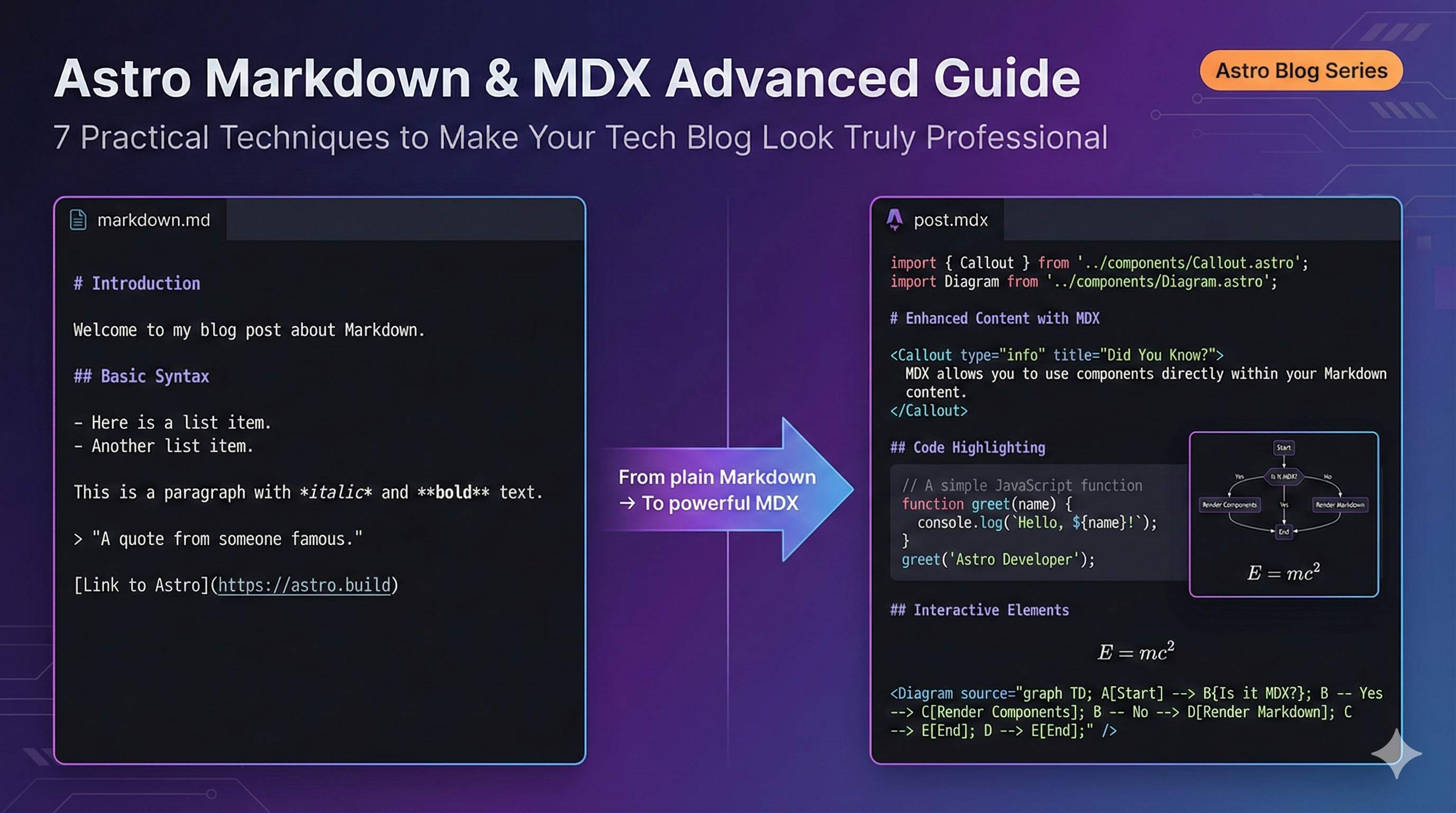
You’ve just set up your Astro blog and started writing your first technical article. Want to highlight specific lines of code? Can’t do it. Want to add a collapsible warning box to remind readers? Not possible. Want to include math formulas in your algorithm explanation? No idea where to start.
I’ve been in that situation too. After writing a few articles in plain Markdown, I realized how limited it was. Looking at other tech blogs with code blocks that highlight key points, show before/after comparisons, and even embed interactive components - all I could do was paste plain code.
Thankfully, Astro provides MDX - an “enhanced Markdown”. Simply put, MDX lets you use components and write JSX while writing articles, instantly multiplying what you can do.
In this article, I’ll share 7 advanced Astro Markdown/MDX techniques, from basic environment setup to code highlighting, custom components, math formulas, and flowcharts. Each tip comes with complete code and configuration steps. By the end, your tech blog will go from “readable” to “professional”.
Part 1: Basic Upgrade - From Markdown to MDX
Why Use MDX?
The difference between Markdown and MDX is like the difference between a regular bike and an electric bike - both get you places, but the experience is completely different.
Plain Markdown only handles static content like text, code blocks, and images. Want to add an info box? You need to hardcode HTML. Want to embed an interactive component? Basically impossible.
MDX is different - it’s Markdown + JSX combined. You can:
- Import and use components: Directly import any Astro, React, or Vue component in .mdx files
- Write JSX expressions: Use
{variable}to insert variables, even write loops and conditionals - Customize element styles: Replace standard
<h1>with your own styled components
Here’s a concrete example. To add a warning box, with plain Markdown you’d write:
<div class="warning">
  <p>Warning: This operation will delete all data!</p>
</div>
With MDX, you can do this:
import Alert from '@/components/Alert.astro';

<Alert type="warning">
  Warning: This operation will delete all data!
</Alert>
See the difference? MDX makes your articles feel like “assembling blocks” rather than “writing code”.
5-Minute MDX Setup
Setting up MDX is super simple - three steps and you’re done.
Step 1: Install the integration
Open your terminal and run in your Astro project:
npx astro add mdxThe Astro CLI will automatically install @astrojs/mdx and update your config file. It’ll ask a few questions (update config? install dependencies?) - just say Yes to everything.
Step 2: Verify configuration
After installation, open astro.config.mjs and you should see:
import { defineConfig } from 'astro/config';
import mdx from '@astrojs/mdx';

export default defineConfig({
  integrations: [mdx()],
});
If it’s not there, just add it manually.
Step 3: Test if MDX works
Create a test.mdx file in src/pages/ or src/content/:
---
title: MDX Test
---

# This is MDX Test

Regular Markdown text.

export const greeting = "Hello";

Now we can use variables: {greeting}!

<div style="padding: 1rem; background: #f0f0f0;">
  This is a JSX element
</div>
Run npm run dev, visit the page, and if you see the variable and JSX element rendering correctly, MDX is configured successfully.
About .md and .mdx file coexistence
After installing MDX integration, your .md files still work normally - no worries. Astro automatically chooses the processing method based on file extension:
.mdfiles: Processed as standard Markdown.mdxfiles: Processed as MDX, supports components and JSX
My recommendation: use .md for regular articles, .mdx for articles needing components. Not every article needs MDX capabilities.
Part 2: Advanced Code Highlighting Techniques
Configuring Code Highlighting Themes (Shiki)
Astro uses Shiki for code highlighting by default, which is already pretty good. But the default theme is github-dark, and you might want something that better matches your blog’s style.
Shiki vs Prism - which to choose?
To be honest, I recommend Shiki. It’s Astro’s default solution, supports 100+ programming languages and themes, and is server-side rendered - no extra JavaScript needed. Prism is also good, but requires importing CSS files and has slightly more complex configuration.
Switching built-in themes
Open astro.config.mjs and add shikiConfig to the markdown configuration:
import { defineConfig } from 'astro/config';
import mdx from '@astrojs/mdx';

export default defineConfig({
  integrations: [mdx()],
  markdown: {
    shikiConfig: {
      theme: 'dracula', // Options: github-dark, nord, monokai, dracula, etc.
    },
  },
});
Shiki supports tons of themes. My common choices:
github-dark/github-light- GitHub styledracula- Classic purple-black color schemenord- Cool Nordic styleone-dark-pro- VSCode default dark theme
You can pick one you like from the Shiki theme preview.
Implementing light/dark dual theme switching
If your blog supports light/dark mode switching, Shiki can configure dual themes:
markdown: {
  shikiConfig: {
    themes: {
      light: 'github-light',
      dark: 'github-dark',
    },
  },
},
With this configuration, Shiki will automatically apply the corresponding code highlighting theme based on CSS prefers-color-scheme or your custom theme switching logic.
Highlighting Specific Lines and Code Annotations
When writing tutorials, you often need to mark “this line is important” or show “what changed in the code”. Shiki Transformers can achieve these features.
Highlighting important code lines
First install Shiki’s transformers:
npm install shikiThen enable transformerNotationHighlight in your config:
import { defineConfig } from 'astro/config';
import mdx from '@astrojs/mdx';
import { transformerNotationHighlight } from '@shikijs/transformers';

export default defineConfig({
  integrations: [mdx()],
  markdown: {
    shikiConfig: {
      theme: 'github-dark',
      transformers: [transformerNotationHighlight()],
    },
  },
});
Now you can use // [!code highlight] comments to mark lines to highlight:
```javascript
function hello() {
  console.log('This is a normal line');
  console.log('This line will be highlighted'); // [!code highlight]
}
```
Showing code changes (Diff style)
When comparing “before/after” code, use transformerNotationDiff:
import { transformerNotationDiff, transformerNotationHighlight } from '@shikijs/transformers';

markdown: {
  shikiConfig: {
    theme: 'github-dark',
    transformers: [
      transformerNotationHighlight(),
      transformerNotationDiff(),
    ],
  },
},
Usage:
```javascript
function calculate(a, b) {
  return a + b; // [!code --]
  return a * b; // [!code ++]
}
```
Lines with -- show in red (deleted), lines with ++ show in green (added). This feature is super useful when writing code tutorials.
Focusing specific code
There’s also transformerNotationFocus, which can “gray out” other code to highlight only the part you want to emphasize:
import { transformerNotationFocus } from '@shikijs/transformers';

// Add to transformers array
transformers: [
  transformerNotationFocus(),
],
Use // [!code focus] to mark:
```javascript
function process() {
  console.log('This line will be grayed');
  console.log('This line displays normally'); // [!code focus]
  console.log('This line also grayed');
}
```
Upgrading to Expressive Code (Optional)
If you feel Shiki’s features aren’t enough, try Expressive Code. It’s a community-developed enhanced code display solution with more out-of-the-box features:
- Code block titles
- One-click copy button
- Line numbers display
- Terminal window styling
- Code comparison (Side-by-Side)
Installation is super simple
npx astro add astro-expressive-codeThe Astro CLI will automatically configure everything. After installation, your code blocks automatically get these features without extra configuration.
When to use Expressive Code?
Honestly, I started with default Shiki, but later found readers often wanted to copy code, so I switched to Expressive Code. If your blog is mainly tutorials and code sharing, Expressive Code makes the reader experience much better.
But if you only occasionally include code, Shiki + Transformers is enough - no need for extra dependencies.
Part 3: Embedding Custom Components
Importing and Using Components in MDX
The most powerful thing about MDX is being able to use components directly in articles. I often use this feature for info boxes, code comparisons, collapsible areas, etc.
Creating an alert box component
First create an Alert.astro in src/components/:
---
interface Props {
  type?: 'info' | 'warning' | 'error';
}

const { type = 'info' } = Astro.props;

const styles = {
  info: 'bg-blue-50 border-blue-200 text-blue-800',
  warning: 'bg-yellow-50 border-yellow-200 text-yellow-800',
  error: 'bg-red-50 border-red-200 text-red-800',
};
---

<div class={`border-l-4 p-4 ${styles[type]}`}>
  <slot />
</div>
Using in MDX articles
Import and use it in your .mdx file:
---
title: My Tech Article
---

import Alert from '@/components/Alert.astro';

# Article Title

This is regular article content.

<Alert type="warning">
  Warning: Back up your data before running this command!
</Alert>

<Alert type="info">
  Tip: You can also use **Markdown syntax** inside components - very convenient.
</Alert>
See that? Inside the <Alert> component, you can continue using Markdown syntax (like bold, links, etc.) and MDX will automatically handle it.
Using React/Vue components
MDX not only supports Astro components but also React, Vue, and other framework components. Just remember to add the client: directive:
import Counter from '@/components/Counter.tsx';

<Counter client:load initialCount={0} />
client:load means this component will run on the client when the page loads. Without it, the component only renders server-side and interactive features won’t work.
Component file organization recommendation
I like putting commonly used article components in the src/components/mdx/ directory for better management:
src/
├── components/
│   ├── mdx/
│   │   ├── Alert.astro
│   │   ├── CodeCompare.astro
│   │   ├── Callout.astro
│   │   └── Tabs.astro
│   └── ...other components
Mapping Markdown Syntax to Custom Components
This feature feels a bit like “magic” - you can replace standard Markdown elements (like h1, a, img) with your own components.
Why do this?
For example, you want to add an anchor icon to all headings, or automatically add a ”↗” mark to external links - doing it manually one by one is too tedious. With component mapping, write standard Markdown and your styles automatically apply.
Practical: Custom heading component
First create a CustomHeading.astro:
---
interface Props {
  level: 1 | 2 | 3 | 4 | 5 | 6;
  id?: string;
}

const { level, id } = Astro.props;
const Tag = `h${level}` as any;
---

<Tag id={id} class="group relative">
  <slot />
  {id && (
    <a href={`#${id}`} class="ml-2 opacity-0 group-hover:opacity-100 transition-opacity">
      #
    </a>
  )}
</Tag>
Using mapping in MDX
In your .mdx file, export a components object:
---
title: Article Title
---

import CustomHeading from '@/components/CustomHeading.astro';

export const components = {
  h2: (props) => <CustomHeading level={2} {...props} />,
  h3: (props) => <CustomHeading level={3} {...props} />,
};

## This is a level 2 heading

Hover over the heading to see the # anchor link appear.

### This is a level 3 heading

All h2 and h3 automatically apply custom styling.
Practical: Adding icons to external links
Create ExternalLink.astro:
---
interface Props {
  href?: string;
}

const { href } = Astro.props;
const isExternal = href?.startsWith('http');
---

<a href={href} target={isExternal ? '_blank' : undefined} rel={isExternal ? 'noopener noreferrer' : undefined}>
  <slot />
  {isExternal && <span class="ml-1 text-xs">↗</span>}
</a>
Mapping usage:
import ExternalLink from '@/components/ExternalLink.astro';

export const components = {
  a: ExternalLink,
};

[This is an internal link](/about)
[This is an external link](https://example.com) ← Automatically adds ↗ icon
Global mapping configuration (Advanced)
If you want all MDX files to use the same set of component mappings, you can configure it in astro.config.mjs. However, this requires custom MDX plugins and is a bit more complex - I usually just configure it in individual files.
Part 4: Math Formulas and Diagram Integration
Integrating KaTeX for Math Formulas
If you write about algorithms, mathematics, or data science, you definitely need to display formulas. KaTeX is currently the best choice - much faster than MathJax and supports server-side rendering.
Installing KaTeX
You need to install three packages:
npm install remark-math rehype-katex katexremark-math: Parses LaTeX syntaxrehype-katex: Renders formulas to HTMLkatex: KaTeX core library
Configuring Astro
Open astro.config.mjs and add these two plugins:
import { defineConfig } from 'astro/config';
import mdx from '@astrojs/mdx';
import remarkMath from 'remark-math';
import rehypeKatex from 'rehype-katex';

export default defineConfig({
  integrations: [mdx()],
  markdown: {
    remarkPlugins: [remarkMath],
    rehypePlugins: [rehypeKatex],
  },
});
Including KaTeX styles
This step is important - formulas won’t render without it. In your layout file (like src/layouts/MarkdownLayout.astro), add to the <head>:
<link
  rel="stylesheet"
  href="https://cdn.jsdelivr.net/npm/[email protected]/dist/katex.min.css"
  crossorigin="anonymous"
/>
Using formulas in articles
After configuration, you can write formulas in Markdown/MDX.
Inline formulas (wrap with single $):
Mass-energy equation: $E = mc^2$

Quadratic formula solution: $x = \frac{-b \pm \sqrt{b^2 - 4ac}}{2a}$
Block formulas (wrap with double $$):
$$
\int_{-\infty}^{\infty} e^{-x^2} dx = \sqrt{\pi}
$$

$$
\sum_{i=1}^{n} i = \frac{n(n+1)}{2}
$$
Common issue: Formulas not displaying
If formulas don’t display or styling is wrong, check these points:
- Is KaTeX CSS correctly included (check Network panel in F12)
- Is rehype-katex version compatible (try downgrading to 6.x)
- Is formula syntax correct (check KaTeX support list)
Integrating Mermaid for Flowcharts and Diagrams
Mermaid lets you draw flowcharts, sequence diagrams, Gantt charts, etc. with code - perfect for technical documentation.
Comparing three integration solutions
The community has several Mermaid integration solutions - here’s a quick comparison:
| Solution | Rendering | SEO | Configuration | Recommended |
|---|---|---|---|---|
| rehype-mermaid | Server-side | Good | Medium | ⭐⭐⭐⭐⭐ |
| astro-diagram | Server-side | Good | Low | ⭐⭐⭐⭐ |
| astro-mermaid | Client-side | Poor | Low | ⭐⭐⭐ |
I recommend rehype-mermaid - server-side rendering, SEO-friendly, generates static SVG.
Installing rehype-mermaid
npm install rehype-mermaidConfiguration
Add to astro.config.mjs:
import { defineConfig } from 'astro/config';
import mdx from '@astrojs/mdx';
import rehypeMermaid from 'rehype-mermaid';

export default defineConfig({
  integrations: [mdx()],
  markdown: {
    rehypePlugins: [
      [rehypeMermaid, { strategy: 'img-svg' }]
    ],
  },
});
strategy: 'img-svg' means generate SVG images - this is the most stable approach.
Drawing diagrams in articles
Just use mermaid code blocks:
Flowchart example:
```mermaid
graph TD
    A[Start] --> B{MDX installed?}
    B -->|Yes| C[Configure code highlighting]
    B -->|No| D[Install MDX]
    D --> C
    C --> E[Complete]
```
Sequence diagram example:
```mermaid
sequenceDiagram
    User->>Browser: Visit page
    Browser->>Server: Request HTML
    Server->>Browser: Return rendered page
    Browser->>User: Display content
```
Build-time generation
When running npm run build, Mermaid diagrams are generated as SVG during the build stage. The final page contains static images - fast loading and no client-side JavaScript needed.
Important notes
If you get “Puppeteer not found” error during build, you might need extra configuration. Try installing playwright:
npm install -D playwrightOr switch to the astro-diagram solution, which has a built-in browser environment.
Part 5: Advanced Techniques and Best Practices
Content Collections MDX Optimization
If you use Astro’s Content Collections to manage blog posts (highly recommended), MDX files can get better type support and development experience.
What are Content Collections?
Simply put, place articles in the src/content/ directory, and Astro will automatically recognize and validate frontmatter, providing type-safe APIs to read content.
Configuring Content Collections
Define your collection in src/content/config.ts:
import { defineCollection, z } from 'astro:content';

const blog = defineCollection({
  type: 'content', // Indicates this is content files (Markdown/MDX)
  schema: z.object({
    title: z.string(),
    description: z.string(),
    pubDate: z.date(),
    tags: z.array(z.string()).optional(),
    draft: z.boolean().default(false),
  }),
});

export const collections = { blog };
Using in MDX
MDX file frontmatter will be automatically validated:
---
title: Astro MDX Advanced Tutorial
description: Learn advanced MDX usage
pubDate: 2025-12-02
tags: [Astro, MDX, Tutorial]
---

import Alert from '@/components/Alert.astro';

# {frontmatter.title}

<Alert type="info">
  Published: {frontmatter.pubDate.toLocaleDateString()}
</Alert>
Auto-generating table of contents
Content Collections provides a getHeadings() method to get all article headings for generating a table of contents:
---
import { getEntry } from 'astro:content';

const entry = await getEntry('blog', 'my-mdx-article');
const { Content, headings } = await entry.render();
---

<aside>
  <h2>Table of Contents</h2>
  <ul>
    {headings.map(h => (
      <li style={`margin-left: ${(h.depth - 1) * 1}rem`}>
        <a href={`#${h.slug}`}>{h.text}</a>
      </li>
    ))}
  </ul>
</aside>

<article>
  <Content />
</article>
This feature is especially useful when writing long articles - readers can quickly jump to sections they’re interested in.
Performance Optimization and Common Pitfalls
MDX is powerful, but used incorrectly can also slow down your site. Here are a few points to watch out for.
Avoid overusing client-side components
You can use React/Vue components in MDX, but don’t forget to add client:* directives. Without them, components only render server-side and interactive features won’t work; if you abuse client:load, you’ll add tons of JavaScript and slow page loading.
My recommendations:
- Use Astro components for static content (like Alert, Callout)
- Use
client:visible(loads when visible) orclient:idle(loads when idle) for interactions - Don’t use
client:loadunless necessary
Image optimization
When inserting images in MDX, don’t use <img> directly - use Astro’s Image component:
---
title: My Article
---

import { Image } from 'astro:assets';
import cover from './cover.jpg';

<Image src={cover} alt="Cover image" width={800} height={600} />
Astro will automatically optimize images (compress, generate WebP, lazy load, etc.) for much better performance.
MDX optimize option
If your site has many MDX files and builds slowly, try enabling the optimize option:
export default defineConfig({
  integrations: [
    mdx({
      optimize: true,
    }),
  ],
});
This option optimizes MDX output through internal rehype plugins, speeding up builds. However, it might change the generated HTML structure, so test before using.
Common errors and solutions
| Error | Cause | Solution |
|---|---|---|
| MDX component not displaying | Forgot to import component | Check import statement |
| Interactive component not working | Missing client: directive | Add client:load etc. |
| Code highlighting not working | Shiki config error | Check astro.config.mjs |
| Math formulas not rendering | KaTeX CSS not included | Add CSS link in layout |
| Slow builds | Too many MDX files | Enable optimize option |
Conclusion
After all that, let me summarize the core points:
Quick recap of 7 tips:
- Configure MDX environment - One command, 5-minute setup
- Switch code highlighting theme - Use Shiki to configure your preferred style
- Highlight and annotate code - Use Transformers to mark key points and show changes
- Embed custom components - Make articles more engaging, from Alert to interactive demos
- Map Markdown elements - Batch customize default styles for headings, links, etc.
- Display math formulas - KaTeX makes your algorithm explanations more professional
- Draw flowcharts - Mermaid draws with code, server-side rendered
Learning path recommendations:
You don’t need to learn all features at once. My suggestion:
- Step 1: Configure MDX environment, try importing a simple component
- Step 2: Configure code highlighting as needed (if you write lots of code)
- Step 3: If writing about algorithms or architecture, add KaTeX and Mermaid
- Step 4: Once comfortable, play with component mapping “magic”
Checklist:
After configuration, test if these features work:
- MDX files render normally
- Code blocks have correct highlighting
- Custom components display
- Math formulas render correctly (if configured)
- Mermaid diagrams generate (if configured)
- Build speed is acceptable
Next steps to explore:
- Browse Astro Integrations for more interesting plugins
- Check out community-shared MDX component libraries
- Try using Astro’s View Transitions to add smooth page transition animations to your blog
Now pick the feature you’re most interested in and try it on your blog. Don’t panic if you run into issues during configuration - the official docs and community are very friendly, and you can usually find answers with a quick search.
Come to think of it, the most important thing about a tech blog is still the content itself. These tools just make your expression clearer and more professional - what really attracts readers is your insights and experience. Hope your Astro blog keeps getting better!
Published on: Dec 2, 2025 · Modified on: Dec 4, 2025

Related Posts

Complete Guide to Deploying Astro on Cloudflare: SSR Configuration + 3x Speed Boost for China

Building an Astro Blog from Scratch: Complete Guide from Homepage to Deployment in 1 Hour